> ## Documentation Index
> Fetch the complete documentation index at: https://docs.exec.com/llms.txt
> Use this file to discover all available pages before exploring further.
# Sources
> Upload files and connect external content so the Knowledge Hub and AI agent can use it
Sources are the raw material in your Knowledge Hub. They can be files you upload, documents from Notion, or files from Google Drive. Once a source is in the hub, the platform extracts its text, indexes it for search, and makes it available to the AI agent and to AI roleplays.
## Adding a source
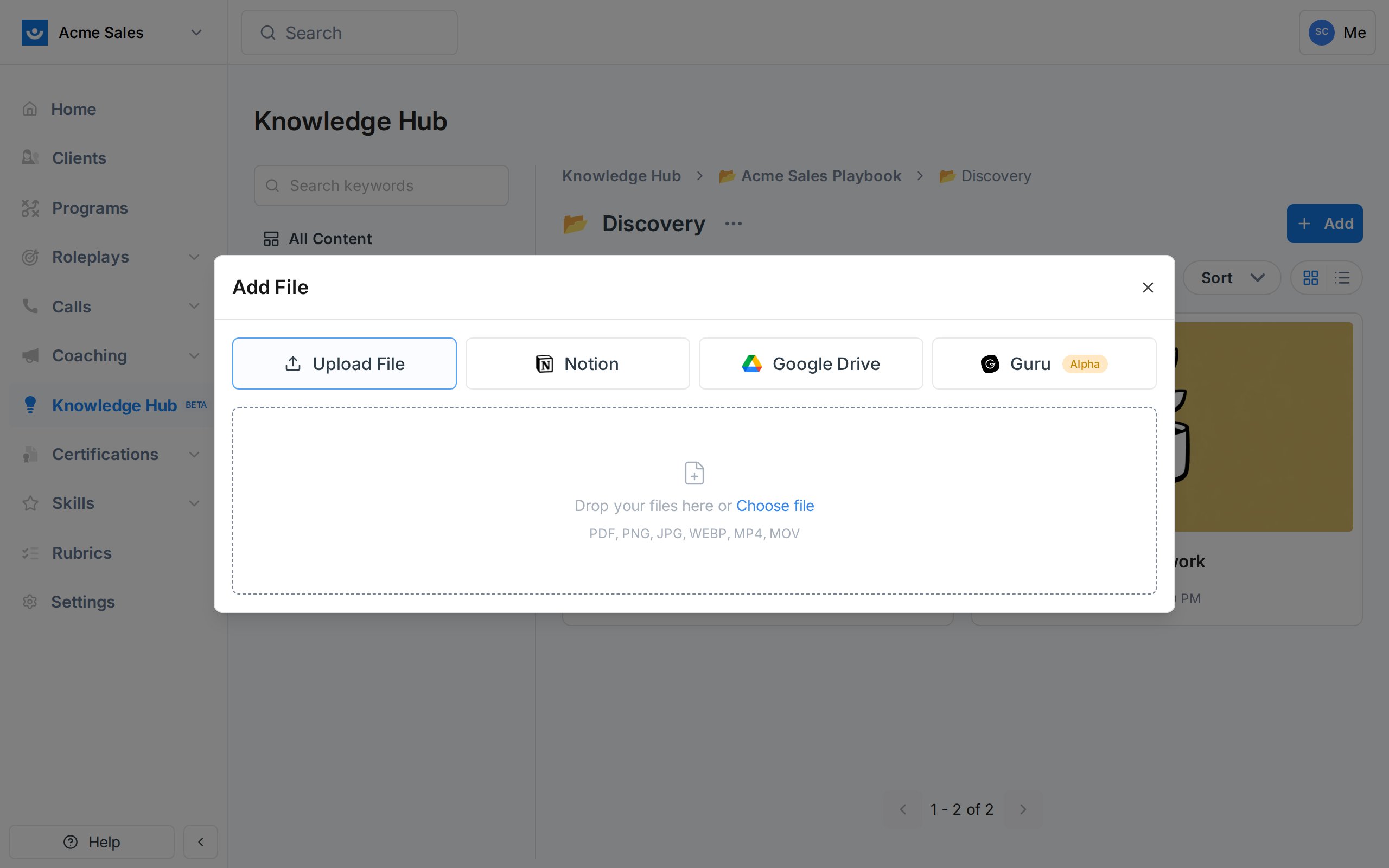
Inside any hub, open the **+ Add** menu and choose **New File**. The Add File dialog offers four ways to bring in content.
 | Option | What it does |
| ---------------- | -------------------------------------------------------------------------------------------- |
| **Upload File** | Upload a file from your computer. Supported formats: PDF, PNG, JPG, WEBP, MP4, MOV. |
| **Notion** | Pick pages from a connected Notion workspace. Text and images are imported and kept in sync. |
| **Google Drive** | Pick files from a connected Google Drive. |
| **Guru** | Import cards from Guru. This integration is in alpha. |
Notion and Google Drive need to be connected under **Settings -> Integrations** before you can pick content from them. See [Notion integration](/knowledge-hub/notion-integration) for setup.
## What happens after upload
When you add a source, the platform kicks off a processing pipeline:
The raw file is converted into plain text. PDFs and documents go through a parser that preserves headings, tables, and images. Notion pages are imported in their native structure.
Extracted text is indexed for hybrid search (keyword plus semantic). This is what lets the AI agent find the right passage of the right source in milliseconds.
A short summary and a handful of AI insights (key points, tags) are generated so you can scan a source list without opening every file.
A source's **Status** moves through Pending -> Processing -> Ready while this happens. Large files can take a minute or two. The page refreshes automatically once the source is ready. If a file can't be processed (for example, an video file with no audible track or a video over 2GB), the status becomes **Failed** and the source shows a short explanation you can act on.
## Video sources
Video sources are transcribed automatically as part of processing. Once the source is Ready:
* The full transcript text is indexed alongside every other source, so the AI agent, search, and roleplays can pull quotes from a call recording or training video the same way they pull from a PDF.
* Opening the source shows the player next to a **Transcript** panel. The active line highlights as the media plays, and clicking any line seeks the player to that timestamp.
* Closed captions are available on the player. Toggle **CC** to show them, and they follow the media into fullscreen.
Transcripts are English-only today, and long files (60+ minutes) are handled in one pass. If you upload an unsupported file or a video without an audio track, the source fails with a friendly error rather than retrying silently.
## Image sources
Images are described automatically by a vision model. The generated description is stored as the source's extracted text, which means images become searchable and usable by the AI agent the same way documents are — the agent can answer "which slide showed the pricing chart?" because the chart's contents are now text it can search.
## Using sources
Once a source is Ready, it is available in three places:
* **The hub itself** - open the source to read the extracted text and insights
* **The AI agent** - when you chat with the agent inside a page, it can search across every source you can see and pull the relevant passages into its answers
* **Roleplays and Programs** - attach sources to a scenario or program so the AI persona speaks to the material your team actually sells against
## Cover images and metadata
For Notion and Google Drive sources, the cover image, title, and metadata come directly from the original file — Exec mirrors what lives in Notion or Drive. To change them, edit the file at the source and the Knowledge Hub will pick up the update on the next sync.
(Cover images and metadata are editable on Knowledge Hub [pages](/knowledge-hub/pages), which are authored inside Exec.)
## Keeping content fresh
Sources from Notion and Google Drive are refreshed automatically every 15 minutes. If you want the latest content immediately, open the source and click **Resync** to pull it right away. Because the source of truth lives in Notion or Drive, the Knowledge Hub always mirrors the current state of the original file rather than keeping a version history.
## Getting Help
Questions about sources? Contact us at [hello@exec.com](mailto:hello@exec.com).
| Option | What it does |
| ---------------- | -------------------------------------------------------------------------------------------- |
| **Upload File** | Upload a file from your computer. Supported formats: PDF, PNG, JPG, WEBP, MP4, MOV. |
| **Notion** | Pick pages from a connected Notion workspace. Text and images are imported and kept in sync. |
| **Google Drive** | Pick files from a connected Google Drive. |
| **Guru** | Import cards from Guru. This integration is in alpha. |
Notion and Google Drive need to be connected under **Settings -> Integrations** before you can pick content from them. See [Notion integration](/knowledge-hub/notion-integration) for setup.
## What happens after upload
When you add a source, the platform kicks off a processing pipeline:
The raw file is converted into plain text. PDFs and documents go through a parser that preserves headings, tables, and images. Notion pages are imported in their native structure.
Extracted text is indexed for hybrid search (keyword plus semantic). This is what lets the AI agent find the right passage of the right source in milliseconds.
A short summary and a handful of AI insights (key points, tags) are generated so you can scan a source list without opening every file.
A source's **Status** moves through Pending -> Processing -> Ready while this happens. Large files can take a minute or two. The page refreshes automatically once the source is ready. If a file can't be processed (for example, an video file with no audible track or a video over 2GB), the status becomes **Failed** and the source shows a short explanation you can act on.
## Video sources
Video sources are transcribed automatically as part of processing. Once the source is Ready:
* The full transcript text is indexed alongside every other source, so the AI agent, search, and roleplays can pull quotes from a call recording or training video the same way they pull from a PDF.
* Opening the source shows the player next to a **Transcript** panel. The active line highlights as the media plays, and clicking any line seeks the player to that timestamp.
* Closed captions are available on the player. Toggle **CC** to show them, and they follow the media into fullscreen.
Transcripts are English-only today, and long files (60+ minutes) are handled in one pass. If you upload an unsupported file or a video without an audio track, the source fails with a friendly error rather than retrying silently.
## Image sources
Images are described automatically by a vision model. The generated description is stored as the source's extracted text, which means images become searchable and usable by the AI agent the same way documents are — the agent can answer "which slide showed the pricing chart?" because the chart's contents are now text it can search.
## Using sources
Once a source is Ready, it is available in three places:
* **The hub itself** - open the source to read the extracted text and insights
* **The AI agent** - when you chat with the agent inside a page, it can search across every source you can see and pull the relevant passages into its answers
* **Roleplays and Programs** - attach sources to a scenario or program so the AI persona speaks to the material your team actually sells against
## Cover images and metadata
For Notion and Google Drive sources, the cover image, title, and metadata come directly from the original file — Exec mirrors what lives in Notion or Drive. To change them, edit the file at the source and the Knowledge Hub will pick up the update on the next sync.
(Cover images and metadata are editable on Knowledge Hub [pages](/knowledge-hub/pages), which are authored inside Exec.)
## Keeping content fresh
Sources from Notion and Google Drive are refreshed automatically every 15 minutes. If you want the latest content immediately, open the source and click **Resync** to pull it right away. Because the source of truth lives in Notion or Drive, the Knowledge Hub always mirrors the current state of the original file rather than keeping a version history.
## Getting Help
Questions about sources? Contact us at [hello@exec.com](mailto:hello@exec.com).