> ## Documentation Index
> Fetch the complete documentation index at: https://docs.exec.com/llms.txt
> Use this file to discover all available pages before exploring further.
# Permissions and Sharing
> Control who can see and edit pages and sources in your Knowledge Hub
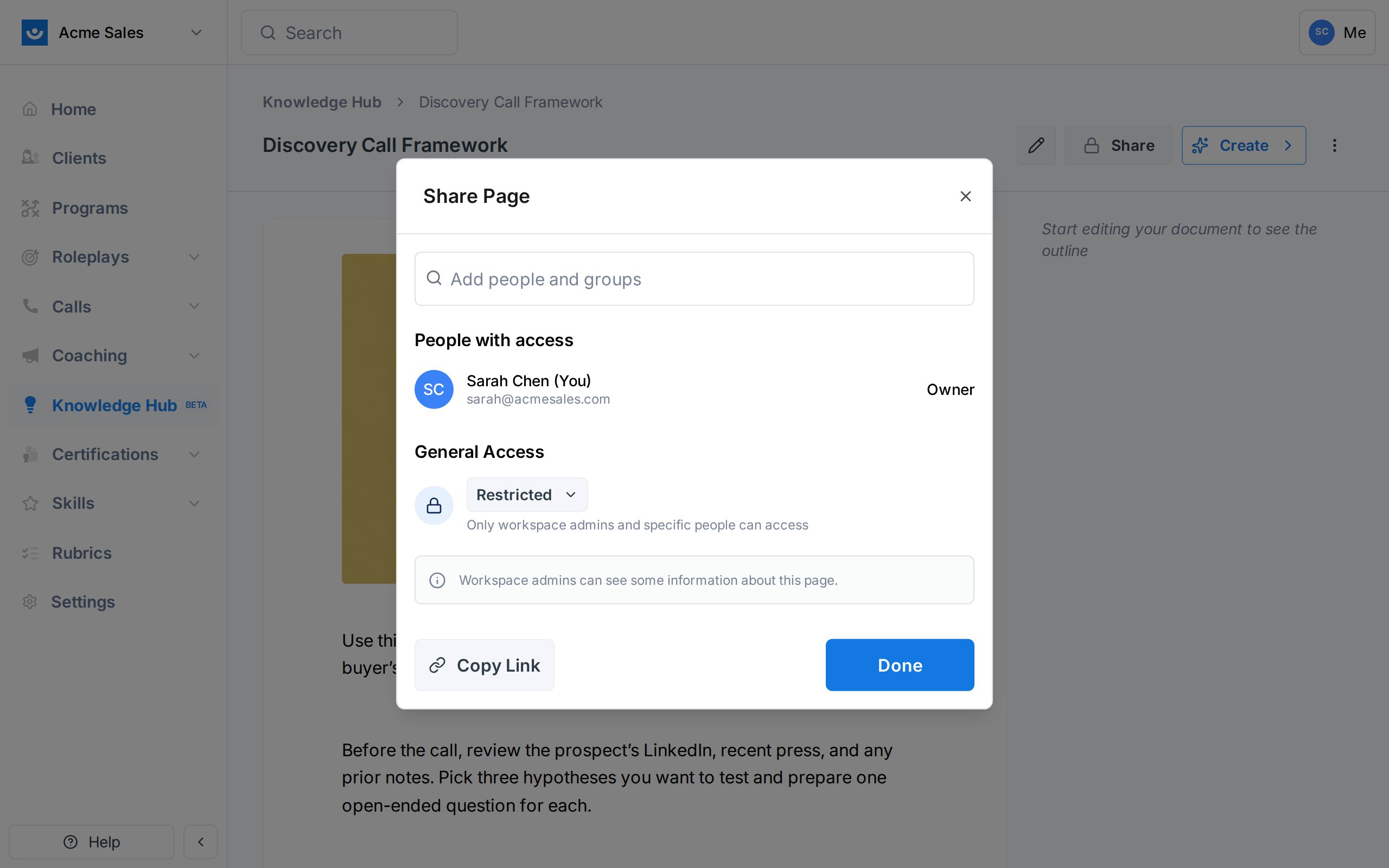
Every page and source in the Knowledge Hub has its own access settings. By default new content is restricted: only the creator and workspace admins can see it. You decide when to share it more broadly.
 ## General Access levels
Open the Share dialog from a page or source to change who can see it.
| Level | Who can see it |
| -------------- | ----------------------------------------------------------------------------- |
| **Restricted** | Only workspace admins and people you have explicitly added |
| **Workspace** | Anyone in your workspace |
| **Global** | All workspaces in your organization (when your plan includes multi-workspace) |
Changing a page from Restricted to Workspace is the usual flow: work on a draft privately, publish it, then open it up to the team.
## Per-person access
Inside the Share dialog you can add specific people or groups by email. Each person gets one of three roles:
| Role | Can do |
| --------------- | ---------------------------------------------------------------------------------- |
| **Viewer** | Read the page |
| **Contributor** | Edit the current draft and publish new versions |
| **Owner** | Everything a Contributor can do, plus change sharing settings and archive the page |
Owners and contributors see the page in their Knowledge Hub regardless of its general access setting.
## Copy Link
The **Copy Link** button at the bottom of the Share dialog copies a direct URL to the page. Anyone who already has access can open it; people who do not will hit a permissions screen when they click.
## Admin override
Workspace admins can see the contents of any page in their workspace, even Restricted ones. This is intentional - admins may need to edit or take over content from team members who have left. If you need truly private content, consider using your own notes app instead.
## What the AI agent can see
The AI agent respects the same permissions. When you chat with the agent and it searches your Knowledge Hub, it only returns results from pages and sources **you** can see. You cannot use the agent to read around a restriction.
## Getting Help
Questions about permissions? Contact us at [hello@exec.com](mailto:hello@exec.com).
## General Access levels
Open the Share dialog from a page or source to change who can see it.
| Level | Who can see it |
| -------------- | ----------------------------------------------------------------------------- |
| **Restricted** | Only workspace admins and people you have explicitly added |
| **Workspace** | Anyone in your workspace |
| **Global** | All workspaces in your organization (when your plan includes multi-workspace) |
Changing a page from Restricted to Workspace is the usual flow: work on a draft privately, publish it, then open it up to the team.
## Per-person access
Inside the Share dialog you can add specific people or groups by email. Each person gets one of three roles:
| Role | Can do |
| --------------- | ---------------------------------------------------------------------------------- |
| **Viewer** | Read the page |
| **Contributor** | Edit the current draft and publish new versions |
| **Owner** | Everything a Contributor can do, plus change sharing settings and archive the page |
Owners and contributors see the page in their Knowledge Hub regardless of its general access setting.
## Copy Link
The **Copy Link** button at the bottom of the Share dialog copies a direct URL to the page. Anyone who already has access can open it; people who do not will hit a permissions screen when they click.
## Admin override
Workspace admins can see the contents of any page in their workspace, even Restricted ones. This is intentional - admins may need to edit or take over content from team members who have left. If you need truly private content, consider using your own notes app instead.
## What the AI agent can see
The AI agent respects the same permissions. When you chat with the agent and it searches your Knowledge Hub, it only returns results from pages and sources **you** can see. You cannot use the agent to read around a restriction.
## Getting Help
Questions about permissions? Contact us at [hello@exec.com](mailto:hello@exec.com).