> ## Documentation Index
> Fetch the complete documentation index at: https://docs.exec.com/llms.txt
> Use this file to discover all available pages before exploring further.
# Knowledge Hub Overview
> Organize training content in one place and make it available to your team and your AI scenarios
## Video walkthrough
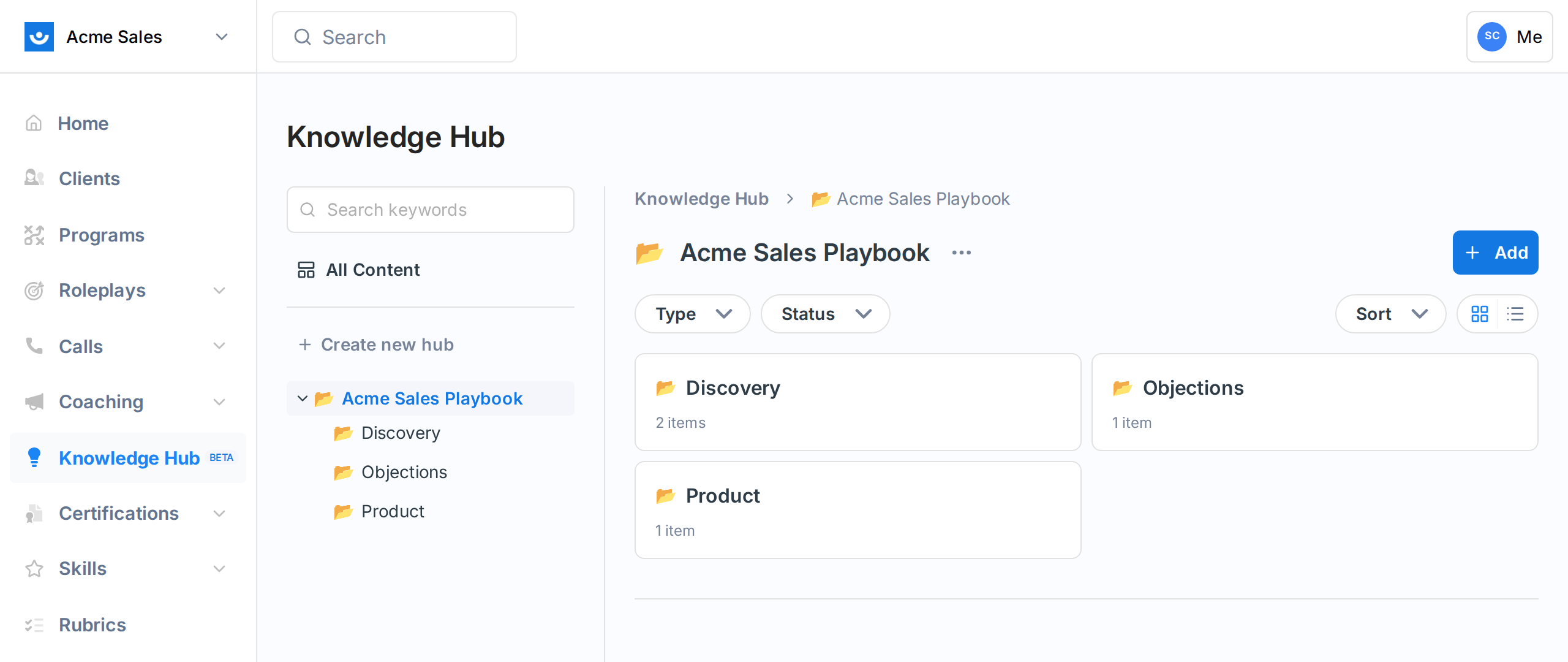
The Knowledge Hub is where your workspace stores training content. You create pages, upload source files, and group them into hubs. Unlike folders, a single file or page can live in multiple hubs at once, so a product one-pager can sit in both your "Onboarding" hub and your "Competitive" hub without duplicating it. Everything in the Knowledge Hub can be searched, shared with your team, and pulled into AI roleplays as context.
## Pages vs Sources vs Hubs
The Knowledge Hub has three building blocks.
Rich-text documents you write or co-create with the AI agent. Pages have drafts, published versions, and a full edit history.
Files you upload or URLs you add. The Knowledge Hub extracts the text, splits it into chunks, and indexes it so the AI can search across it.
Containers that group Pages and Sources. The same page or source can live in multiple hubs at once, and hubs can hold other hubs, so you can build a hierarchy that matches how your team thinks about its content.
Use Pages for content your team will read directly. Use Sources for raw material like training decks, call recordings, or product PDFs. Use Hubs to keep everything findable.
 ## What goes in a Hub
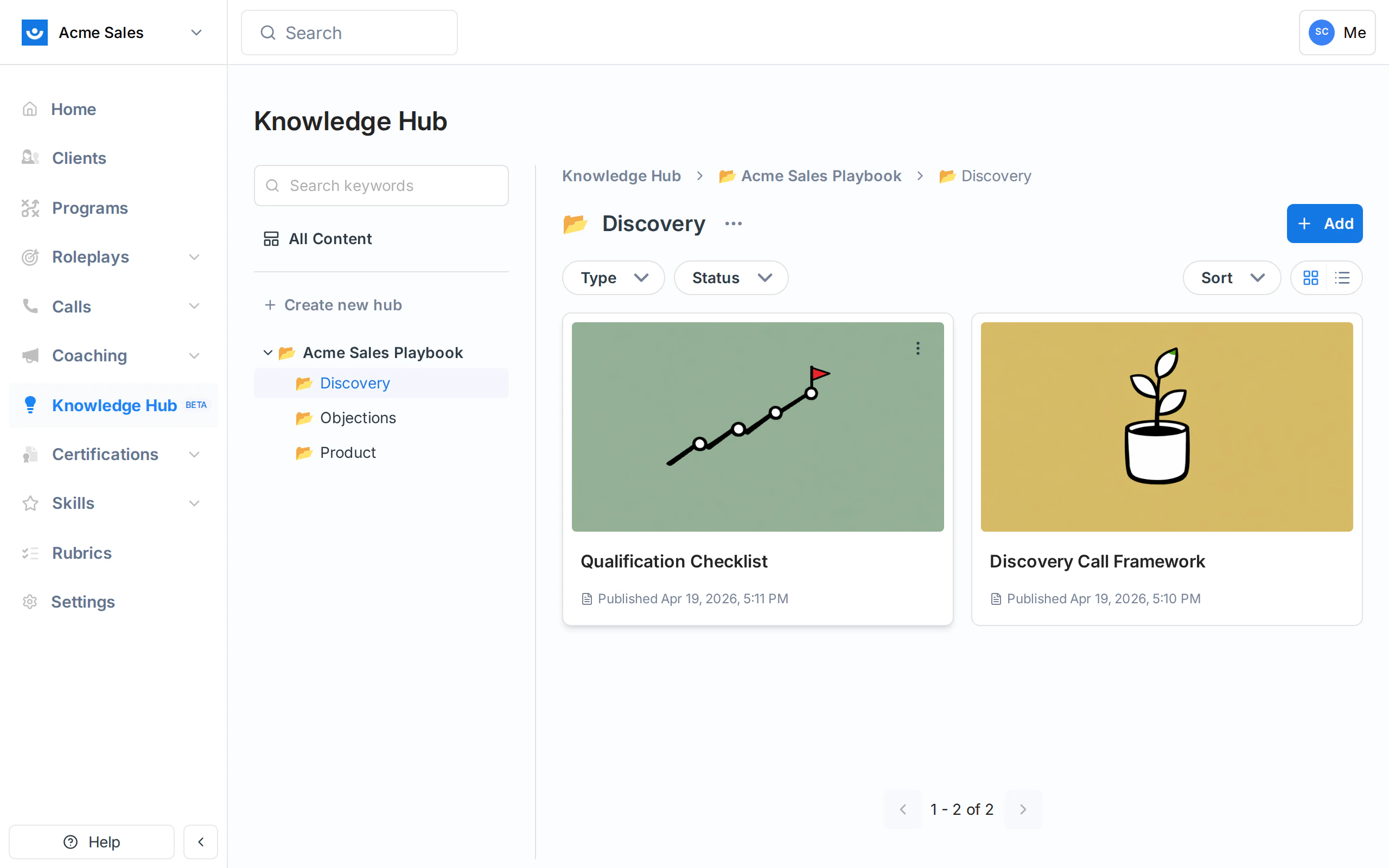
Inside any hub you can see its pages and sources together, filter by type or status, and sort the list. Every item shows who created it and when it was last updated.
## What goes in a Hub
Inside any hub you can see its pages and sources together, filter by type or status, and sort the list. Every item shows who created it and when it was last updated.
 ## Where the Knowledge Hub shows up
The Knowledge Hub connects to the rest of Exec in two places:
* **Roleplays** - When you build a scenario, you can attach pages and sources from the hub. The AI uses them as context during the conversation so the prospect and the feedback match what your team actually sells. You can even draft scenario outlines as a page (have the agent generate them from your call transcripts and frameworks), then use the page's **Create** button to jump straight into Scenario Studio with that page as context, or to start a Program. See [Using the Knowledge Hub in Roleplays](/knowledge-hub/using-in-roleplays).
* **Programs** - Programs can reference Knowledge Hub pages the same way, so participants see the right documentation alongside the components they need to complete.
This means content you write once is reusable. Update the page in the hub and every scenario and program that references it stays in sync.
## Visibility and permissions
Every page and source has a visibility scope:
| Scope | Who can see it |
| ------------- | ------------------------------------------------------------------------------------------------ |
| **User** | Only the owner. New pages and sources start here by default. |
| **Workspace** | Everyone in your workspace. Flip a resource to **Workspace** and save to share it with the team. |
| **Global** | Shared across all workspaces in your organization. |
New Knowledge Hub content is **private by default** (User scope), so it stays visible only to you until you share it. To make something available to everyone, flip it to **Workspace** and save, or share it with specific people. Workspace admins can always see and edit everything in their workspace regardless of owner. See [Permissions and Sharing](/knowledge-hub/permissions).
## Getting started
From the Knowledge Hub home, click **Create new hub** in the sidebar and give it a name. This is your top-level container.
Inside a hub, use the **+ Add** menu to create nested hubs, new pages, or to upload files as sources. When adding a source you can upload from your computer or connect **Notion**, **Google Drive**, or **Guru** to import directly. See [Sources](/knowledge-hub/sources) and the [Notion Integration](/knowledge-hub/notion-integration).
Pages open in an editor with the AI chat panel on the left. You can write directly in the document, or describe what you want and have the agent draft it for you.
Drafts are private to you by default. When a page is ready, click **Publish** to share it with your workspace and make it available to the AI agent and to scenarios.
## Getting Help
Need a hand setting up your Knowledge Hub? Contact us at [hello@exec.com](mailto:hello@exec.com).
## Where the Knowledge Hub shows up
The Knowledge Hub connects to the rest of Exec in two places:
* **Roleplays** - When you build a scenario, you can attach pages and sources from the hub. The AI uses them as context during the conversation so the prospect and the feedback match what your team actually sells. You can even draft scenario outlines as a page (have the agent generate them from your call transcripts and frameworks), then use the page's **Create** button to jump straight into Scenario Studio with that page as context, or to start a Program. See [Using the Knowledge Hub in Roleplays](/knowledge-hub/using-in-roleplays).
* **Programs** - Programs can reference Knowledge Hub pages the same way, so participants see the right documentation alongside the components they need to complete.
This means content you write once is reusable. Update the page in the hub and every scenario and program that references it stays in sync.
## Visibility and permissions
Every page and source has a visibility scope:
| Scope | Who can see it |
| ------------- | ------------------------------------------------------------------------------------------------ |
| **User** | Only the owner. New pages and sources start here by default. |
| **Workspace** | Everyone in your workspace. Flip a resource to **Workspace** and save to share it with the team. |
| **Global** | Shared across all workspaces in your organization. |
New Knowledge Hub content is **private by default** (User scope), so it stays visible only to you until you share it. To make something available to everyone, flip it to **Workspace** and save, or share it with specific people. Workspace admins can always see and edit everything in their workspace regardless of owner. See [Permissions and Sharing](/knowledge-hub/permissions).
## Getting started
From the Knowledge Hub home, click **Create new hub** in the sidebar and give it a name. This is your top-level container.
Inside a hub, use the **+ Add** menu to create nested hubs, new pages, or to upload files as sources. When adding a source you can upload from your computer or connect **Notion**, **Google Drive**, or **Guru** to import directly. See [Sources](/knowledge-hub/sources) and the [Notion Integration](/knowledge-hub/notion-integration).
Pages open in an editor with the AI chat panel on the left. You can write directly in the document, or describe what you want and have the agent draft it for you.
Drafts are private to you by default. When a page is ready, click **Publish** to share it with your workspace and make it available to the AI agent and to scenarios.
## Getting Help
Need a hand setting up your Knowledge Hub? Contact us at [hello@exec.com](mailto:hello@exec.com).