> ## Documentation Index
> Fetch the complete documentation index at: https://docs.exec.com/llms.txt
> Use this file to discover all available pages before exploring further.
# Notion Integration
> Connect a Notion workspace and pull pages into your Knowledge Hub
If your team already keeps documentation in Notion, you can connect it to Exec and import pages as sources. Imported Notion pages are searchable, available to the AI agent, and can be referenced from scenarios and programs like any other source.
 ## Connecting Notion
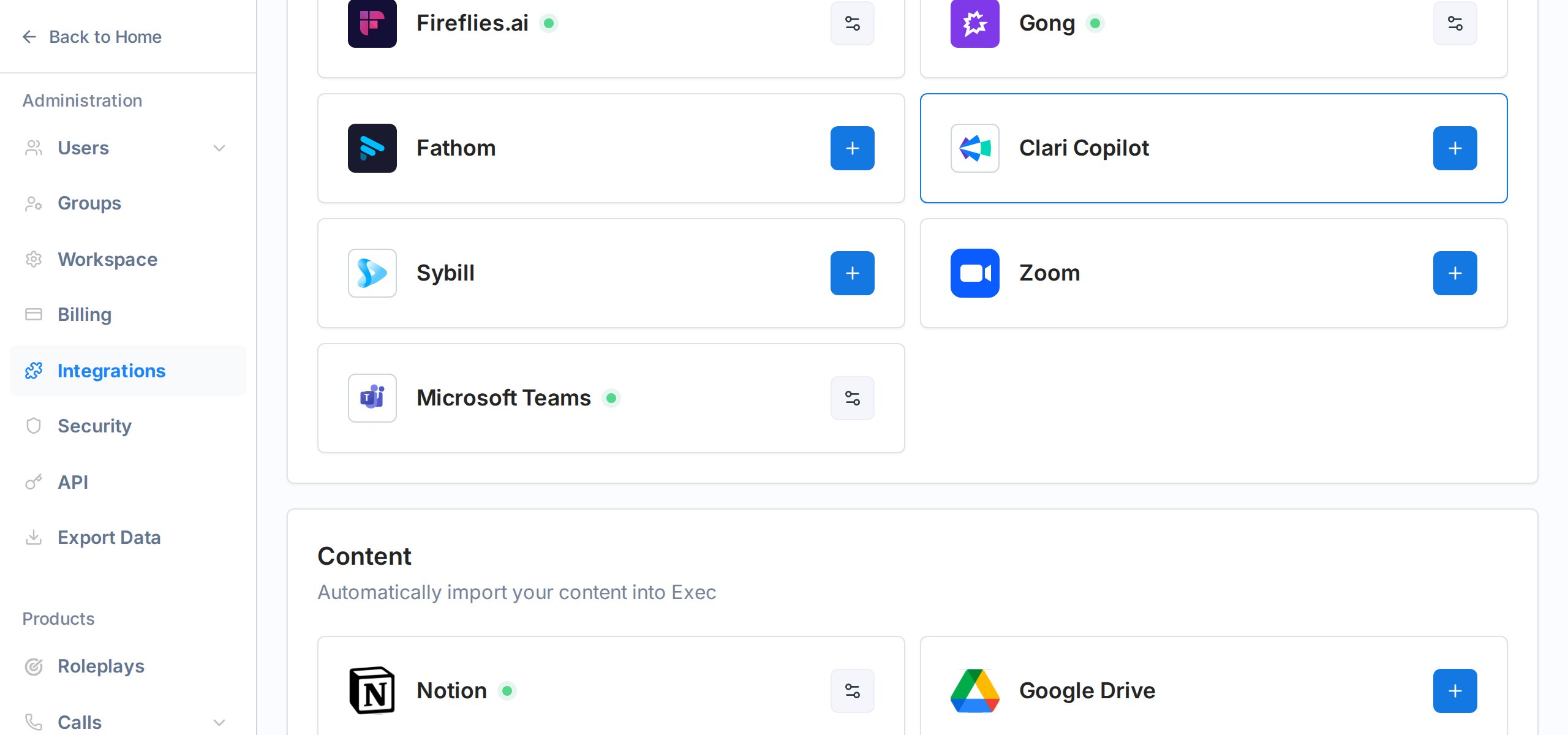
Go to **Settings -> Integrations** from the workspace sidebar. Scroll down to the **Content** section.
Click the **+** button on the Notion card. You will be redirected to Notion to log in and grant access.
In Notion's authorization screen, select the pages or workspaces you want Exec to be able to read. You can change this selection later from Notion's integration settings.
Notion sends you back to Exec. The integration card now shows a green indicator next to the Notion logo.
The connection lives at the workspace level. Once a workspace admin connects Notion, everyone on the team can use it.
## Importing a Notion page
Navigate to the Knowledge Hub and open the hub where you want the imported page to live.
Click **+ Add -> New File**, then choose **Notion** from the dialog.
A picker shows the Notion pages you shared during setup. Choose the page you want to import.
The page is fetched, converted to markdown, and indexed. Status moves from Processing to Ready, usually in under a minute.
## What gets imported
* **Text content** - all paragraphs, headings, lists, quotes, and tables
* **Images** - images embedded in the Notion page are downloaded and stored alongside the source
* **Sub-pages** - each sub-page is imported separately, so the hierarchy stays intact
Database views, embeds from other tools, and dynamic content that only renders inside Notion are not supported.
## Keeping content in sync
Imported Notion pages keep a reference back to the original and Exec checks every connected file for changes on a 15 minute cron. When the Notion page changes, the Knowledge Hub picks up the update on the next cron run automatically — no action needed on your side.
If you want the latest content immediately rather than waiting for the next cron, open the source and click **Resync** to pull it right away.
Because Notion remains the source of truth, the Knowledge Hub does not keep a version history for Notion sources — it always mirrors the current state of the Notion page. (Version history is available for Knowledge Hub pages.)
## Disconnecting
You can disconnect Notion at any time from **Settings -> Integrations**. Previously imported sources stay in your Knowledge Hub; they just stop receiving updates. Reconnecting later picks up where you left off.
## Getting Help
Questions about the Notion integration? Contact us at [hello@exec.com](mailto:hello@exec.com).
## Connecting Notion
Go to **Settings -> Integrations** from the workspace sidebar. Scroll down to the **Content** section.
Click the **+** button on the Notion card. You will be redirected to Notion to log in and grant access.
In Notion's authorization screen, select the pages or workspaces you want Exec to be able to read. You can change this selection later from Notion's integration settings.
Notion sends you back to Exec. The integration card now shows a green indicator next to the Notion logo.
The connection lives at the workspace level. Once a workspace admin connects Notion, everyone on the team can use it.
## Importing a Notion page
Navigate to the Knowledge Hub and open the hub where you want the imported page to live.
Click **+ Add -> New File**, then choose **Notion** from the dialog.
A picker shows the Notion pages you shared during setup. Choose the page you want to import.
The page is fetched, converted to markdown, and indexed. Status moves from Processing to Ready, usually in under a minute.
## What gets imported
* **Text content** - all paragraphs, headings, lists, quotes, and tables
* **Images** - images embedded in the Notion page are downloaded and stored alongside the source
* **Sub-pages** - each sub-page is imported separately, so the hierarchy stays intact
Database views, embeds from other tools, and dynamic content that only renders inside Notion are not supported.
## Keeping content in sync
Imported Notion pages keep a reference back to the original and Exec checks every connected file for changes on a 15 minute cron. When the Notion page changes, the Knowledge Hub picks up the update on the next cron run automatically — no action needed on your side.
If you want the latest content immediately rather than waiting for the next cron, open the source and click **Resync** to pull it right away.
Because Notion remains the source of truth, the Knowledge Hub does not keep a version history for Notion sources — it always mirrors the current state of the Notion page. (Version history is available for Knowledge Hub pages.)
## Disconnecting
You can disconnect Notion at any time from **Settings -> Integrations**. Previously imported sources stay in your Knowledge Hub; they just stop receiving updates. Reconnecting later picks up where you left off.
## Getting Help
Questions about the Notion integration? Contact us at [hello@exec.com](mailto:hello@exec.com).