> ## Documentation Index
> Fetch the complete documentation index at: https://docs.exec.com/llms.txt
> Use this file to discover all available pages before exploring further.
# AI Chat
> Co-create and refine Knowledge Hub pages with an AI agent that can read your sources
Every Knowledge Hub page has a built-in AI chat. You can use it to draft a new page from scratch, refine an existing page, or pull in information from your sources. The agent runs on Claude and has direct access to the content in your workspace.
 ## Two modes
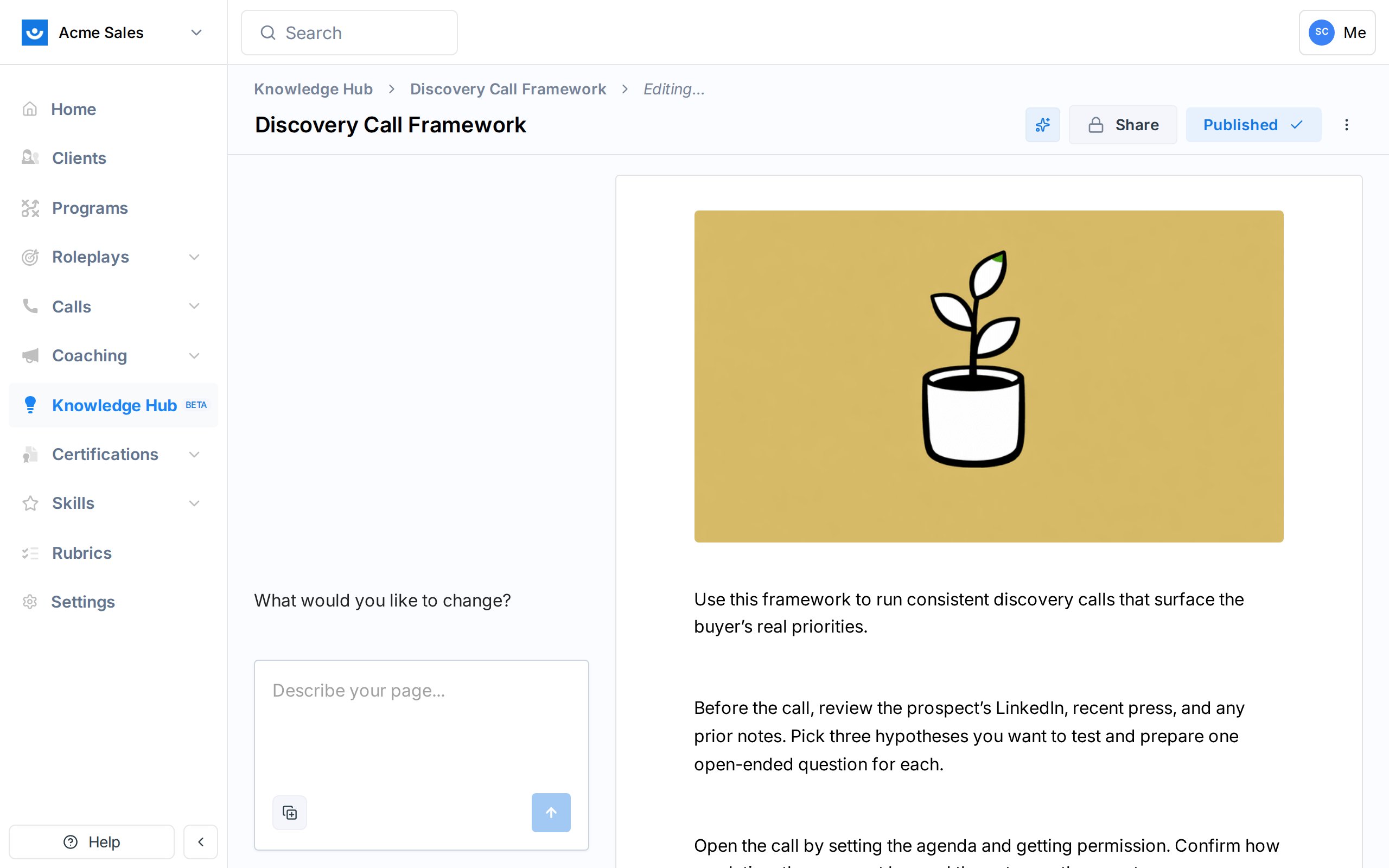
The agent operates in one of two modes depending on what you are doing.
| Mode | When it runs | What it does |
| ------------- | ------------------------------------------- | ----------------------------------------------------------------- |
| **Discovery** | You start a brand new chat with no page yet | Gathers context, asks clarifying questions, and drafts a new page |
| **Edit** | You open the chat on an existing page | Refines what is already there based on your instructions |
In both modes, the page preview on the right updates as the agent writes, so you can see changes take shape before you commit them.
## Starting a chat from scratch
Open **Knowledge Hub -> + Add -> New Page** (or go straight to **/knowledge/chat/new**). The page opens in Discovery mode.
## Two modes
The agent operates in one of two modes depending on what you are doing.
| Mode | When it runs | What it does |
| ------------- | ------------------------------------------- | ----------------------------------------------------------------- |
| **Discovery** | You start a brand new chat with no page yet | Gathers context, asks clarifying questions, and drafts a new page |
| **Edit** | You open the chat on an existing page | Refines what is already there based on your instructions |
In both modes, the page preview on the right updates as the agent writes, so you can see changes take shape before you commit them.
## Starting a chat from scratch
Open **Knowledge Hub -> + Add -> New Page** (or go straight to **/knowledge/chat/new**). The page opens in Discovery mode.
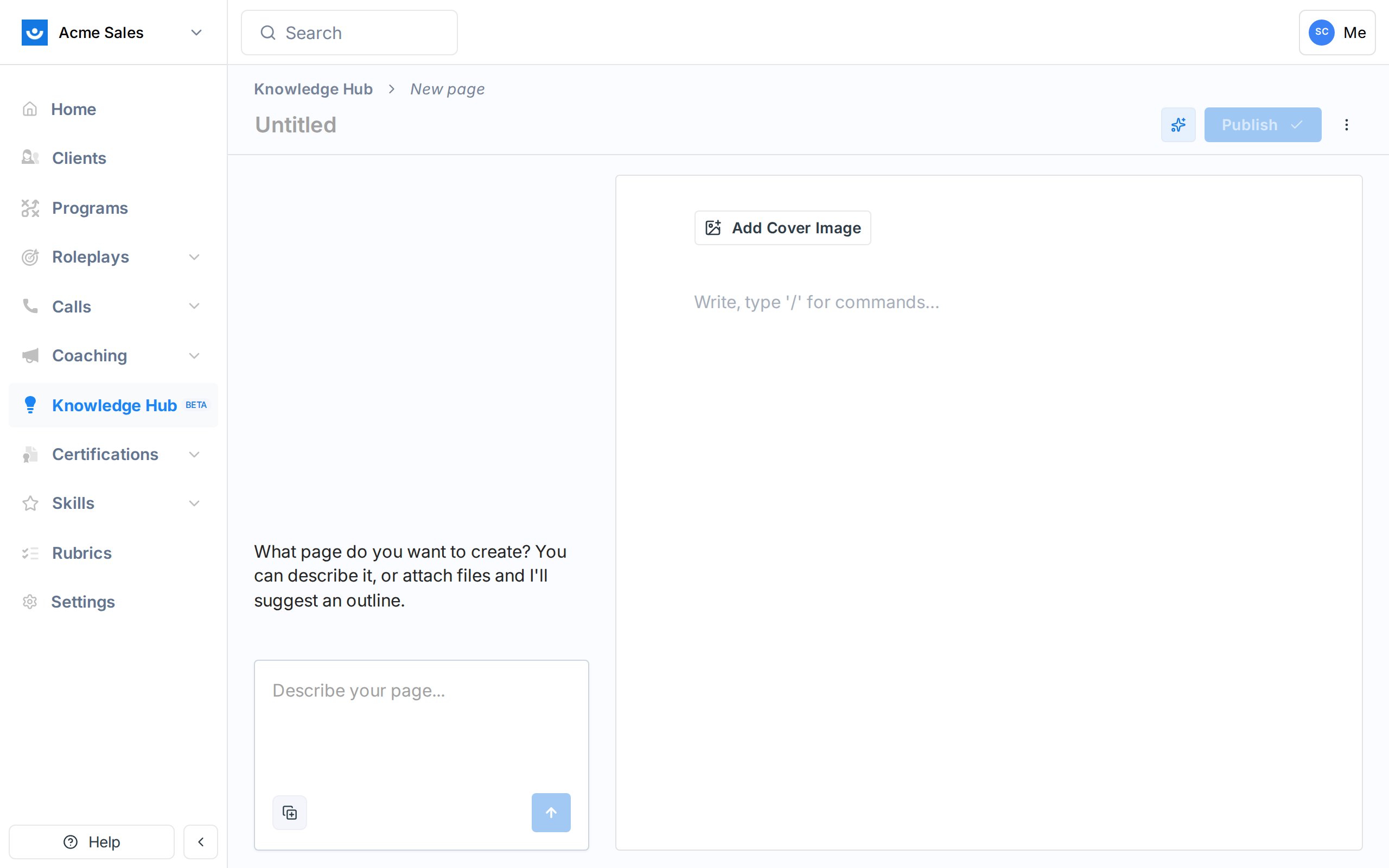 Describe the page you want. The agent will ask follow-up questions if the prompt is vague, then draft a page. You can keep iterating - "make it shorter", "add a section on pricing", "use our Discovery Call Framework as a reference" - until it looks right.
## What the agent can do
The agent has four tools it can reach for during a conversation:
Runs hybrid keyword and semantic search across every source and page in your workspace that you can see. Used when you ask about something the workspace already knows.
Pulls the full extracted text of a specific source. The agent uses this after search when it needs the details.
Searches the open web. The agent uses this when a question is not covered in your sources.
Reads a specific web page. Useful when you drop a link into the chat and want the agent to pull it in.
The agent can call these tools up to 20 times in a single response, so it can string multiple searches together to answer a complex question.
## Attaching files and links
Below the chat input you can attach files, pages, or sources directly to a message. Attached content is sent to the agent as context for that turn. This is the fastest way to say "use this document to answer" without making the agent search for it.
Images are sent as visual input - the agent can look at screenshots, diagrams, and photos. PDFs and text files are extracted and sent as markdown.
## Drafts, not publishes
The agent always writes into the draft version. Nothing is visible to your workspace until you click **Publish**. This means you can experiment freely.
When you do publish, the change type is recorded as `AI Generation` in the version history, so you can tell which versions were human-written and which came from a chat.
## What the agent will not do
The agent is scoped to content in your workspace. It cannot see private data from other workspaces, user accounts, billing information, or anything outside Exec. Searches respect your view permissions, so if you cannot see a source, neither can the agent when you ask.
## Getting Help
Questions about the AI agent? Contact us at [hello@exec.com](mailto:hello@exec.com).
Describe the page you want. The agent will ask follow-up questions if the prompt is vague, then draft a page. You can keep iterating - "make it shorter", "add a section on pricing", "use our Discovery Call Framework as a reference" - until it looks right.
## What the agent can do
The agent has four tools it can reach for during a conversation:
Runs hybrid keyword and semantic search across every source and page in your workspace that you can see. Used when you ask about something the workspace already knows.
Pulls the full extracted text of a specific source. The agent uses this after search when it needs the details.
Searches the open web. The agent uses this when a question is not covered in your sources.
Reads a specific web page. Useful when you drop a link into the chat and want the agent to pull it in.
The agent can call these tools up to 20 times in a single response, so it can string multiple searches together to answer a complex question.
## Attaching files and links
Below the chat input you can attach files, pages, or sources directly to a message. Attached content is sent to the agent as context for that turn. This is the fastest way to say "use this document to answer" without making the agent search for it.
Images are sent as visual input - the agent can look at screenshots, diagrams, and photos. PDFs and text files are extracted and sent as markdown.
## Drafts, not publishes
The agent always writes into the draft version. Nothing is visible to your workspace until you click **Publish**. This means you can experiment freely.
When you do publish, the change type is recorded as `AI Generation` in the version history, so you can tell which versions were human-written and which came from a chat.
## What the agent will not do
The agent is scoped to content in your workspace. It cannot see private data from other workspaces, user accounts, billing information, or anything outside Exec. Searches respect your view permissions, so if you cannot see a source, neither can the agent when you ask.
## Getting Help
Questions about the AI agent? Contact us at [hello@exec.com](mailto:hello@exec.com).