> ## Documentation Index
> Fetch the complete documentation index at: https://docs.exec.com/llms.txt
> Use this file to discover all available pages before exploring further.
# Remix a Course
> Copy an existing course into a new draft and retarget it at a different audience with Course AI
Remixing takes a course you already have and makes an independent copy you can change freely. It is the fastest way to get a second version of good training: the same material framed for a different role, a different tenure level, or a different department, without rebuilding it and without disturbing the course your team is already enrolled in.
If you have remixed a roleplay scenario before, this is the same idea applied to a whole course. See [Remix a Scenario](/roleplays/remix-scenario) for the scenario version.
## When to Remix
Reach for a remix when the content is right but the framing is not:
* **A different audience.** A foundations course written for new hires, retargeted at tenured reps who need the refresher rather than the basics.
* **A different team.** The same framework taught to support, where the examples should be tickets rather than deals.
* **A different depth.** A long onboarding course cut down to a short version, or a short one expanded.
* **A safe place to experiment.** Try a restructure on a copy while the published course keeps running.
If you only want to change the live course itself, you do not need a remix. Editing a published course already starts a new draft and leaves learners on the current version until you publish. See [Publish and Versioning](/courses/publish-and-versioning).
## Remix a Course
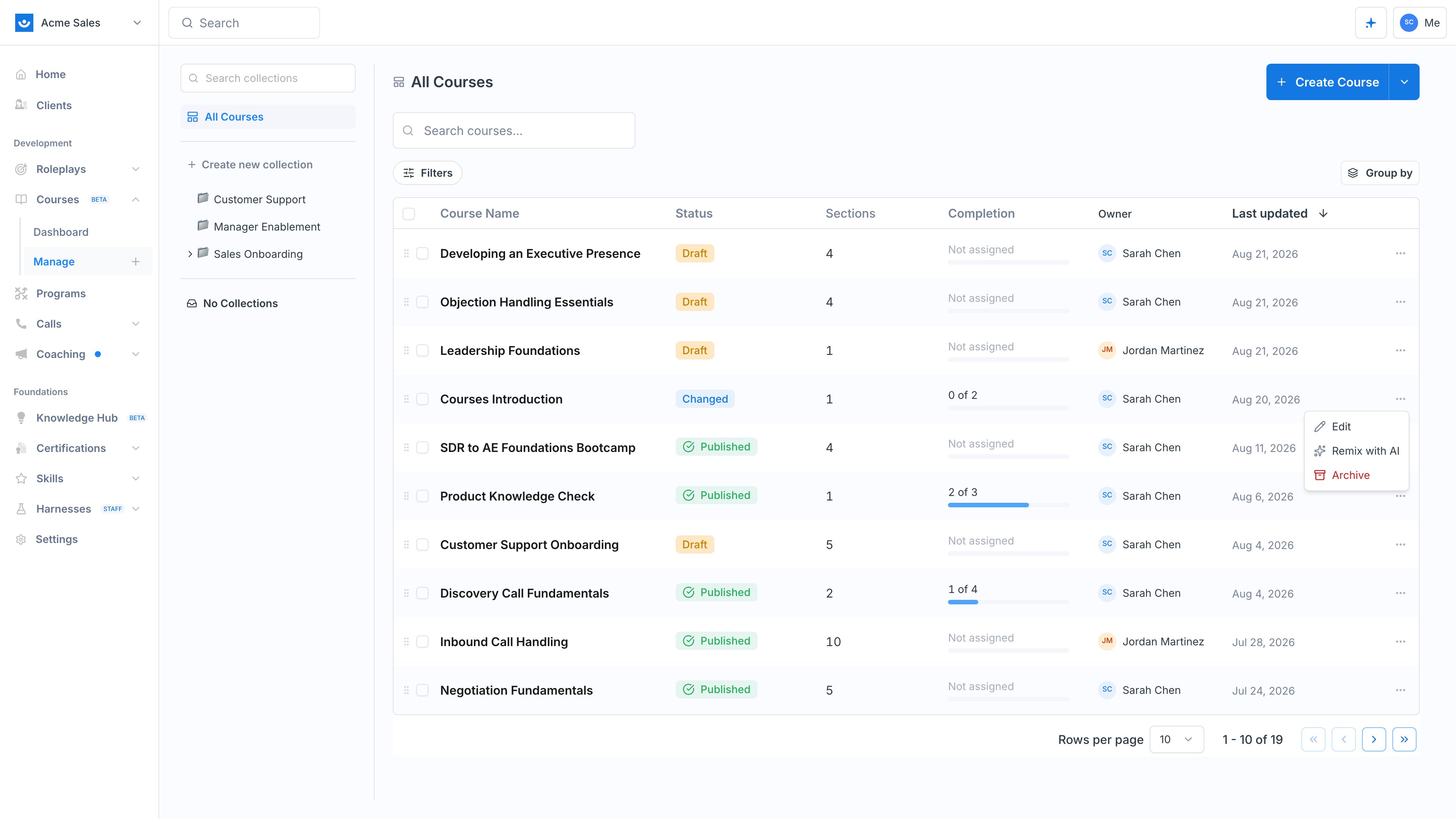
Go to **Courses > Manage** and find the course in the list. Remix is available from the row's **...** menu, and from the actions menu on the course dashboard and in the builder header.
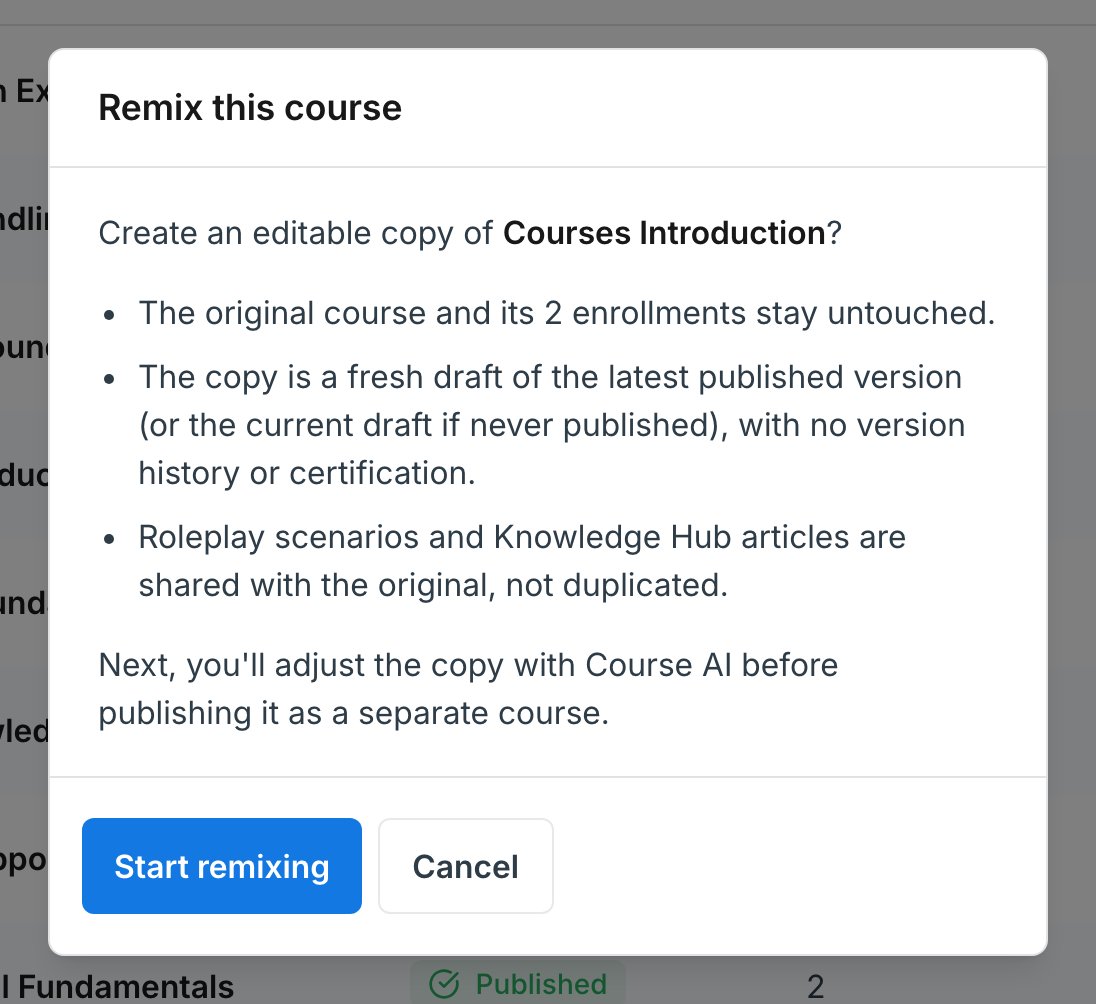
 Exec confirms what the copy will and will not carry over before it creates anything.
 The copy is created as a draft named after the original with **(remix)** appended, and opens in the builder with the Course AI panel already open.
Describe the new audience or framing and let it rework the copy. Because it is a full course, whole-course instructions work well here: retone it for a different level, translate it, shorten it, or split a section into several.
Give the remix a real name in the course settings, then publish it as its own separate course. Until you publish, nobody sees it.
## What Carries Over
A remix is a structural copy, not a linked one. Once created, the two courses are independent: editing one never affects the other.
| Carried over | Not carried over |
| ----------------------------------------- | --------------------------------------------- |
| All sections, pages, and blocks | Enrollments and learner progress |
| Description, cover image, and theme color | Version history (the copy starts fresh) |
| Course tags and group restrictions | The linked certification |
| Self-enrollment setting | Published status (the copy starts as a Draft) |
| Email notification settings | |
Two details are worth knowing:
* **Roleplay scenarios and Knowledge Hub articles are shared, not duplicated.** The remix points at the same scenarios and articles as the original, so editing one of those scenarios changes it in both courses. If you want the remix to practice against something different, swap the block's scenario or generate a new one. See [Add a Roleplay](/courses/add-roleplay).
* **The copy starts from the published version.** If the original has never been published, the copy is taken from its current draft instead.
A remix is a new course, so it counts against your plan's course limit and needs a free slot to be created. Archived courses cannot be remixed. See [Plans and Feature Availability](/platform/plans).
## Remix, Collection, or Restriction?
These solve different problems, and it is easy to reach for the wrong one:
* **Remix** when you need genuinely different content for a different audience. You end up with two courses that diverge.
* **A collection** when the content is the same and you only want it organized or easier to find. See [Collections](/courses/collections).
* **Group restrictions** when the content is the same and you only want to control who can enroll. See [Enroll Participants](/courses/enroll-participants).
## Next Steps
How the remix's draft, publishing, and version history work.
Keep the original and its remixes organized together.
The copy is created as a draft named after the original with **(remix)** appended, and opens in the builder with the Course AI panel already open.
Describe the new audience or framing and let it rework the copy. Because it is a full course, whole-course instructions work well here: retone it for a different level, translate it, shorten it, or split a section into several.
Give the remix a real name in the course settings, then publish it as its own separate course. Until you publish, nobody sees it.
## What Carries Over
A remix is a structural copy, not a linked one. Once created, the two courses are independent: editing one never affects the other.
| Carried over | Not carried over |
| ----------------------------------------- | --------------------------------------------- |
| All sections, pages, and blocks | Enrollments and learner progress |
| Description, cover image, and theme color | Version history (the copy starts fresh) |
| Course tags and group restrictions | The linked certification |
| Self-enrollment setting | Published status (the copy starts as a Draft) |
| Email notification settings | |
Two details are worth knowing:
* **Roleplay scenarios and Knowledge Hub articles are shared, not duplicated.** The remix points at the same scenarios and articles as the original, so editing one of those scenarios changes it in both courses. If you want the remix to practice against something different, swap the block's scenario or generate a new one. See [Add a Roleplay](/courses/add-roleplay).
* **The copy starts from the published version.** If the original has never been published, the copy is taken from its current draft instead.
A remix is a new course, so it counts against your plan's course limit and needs a free slot to be created. Archived courses cannot be remixed. See [Plans and Feature Availability](/platform/plans).
## Remix, Collection, or Restriction?
These solve different problems, and it is easy to reach for the wrong one:
* **Remix** when you need genuinely different content for a different audience. You end up with two courses that diverge.
* **A collection** when the content is the same and you only want it organized or easier to find. See [Collections](/courses/collections).
* **Group restrictions** when the content is the same and you only want to control who can enroll. See [Enroll Participants](/courses/enroll-participants).
## Next Steps
How the remix's draft, publishing, and version history work.
Keep the original and its remixes organized together.