> ## Documentation Index
> Fetch the complete documentation index at: https://docs.exec.com/llms.txt
> Use this file to discover all available pages before exploring further.
# Courses Overview
> Build self-paced training courses from content blocks, publish them, and enroll learners through a catalog or direct assignment
## Video walkthrough
Courses are Exec's self-paced training builder. Assemble a course out of content blocks (text, video, slides, quizzes, files, Knowledge Hub articles, and AI roleplays), publish it, and get it in front of your team through a self-serve catalog or a direct assignment with a deadline. Learners work through it page by page at their own pace, and finishing a course can automatically award a certification.
Courses is rolling out gradually and may need to be enabled for your workspace. It appears with a Beta badge in the app. See [Enable Courses](/courses/enable-courses).
## What a Learner Sees First
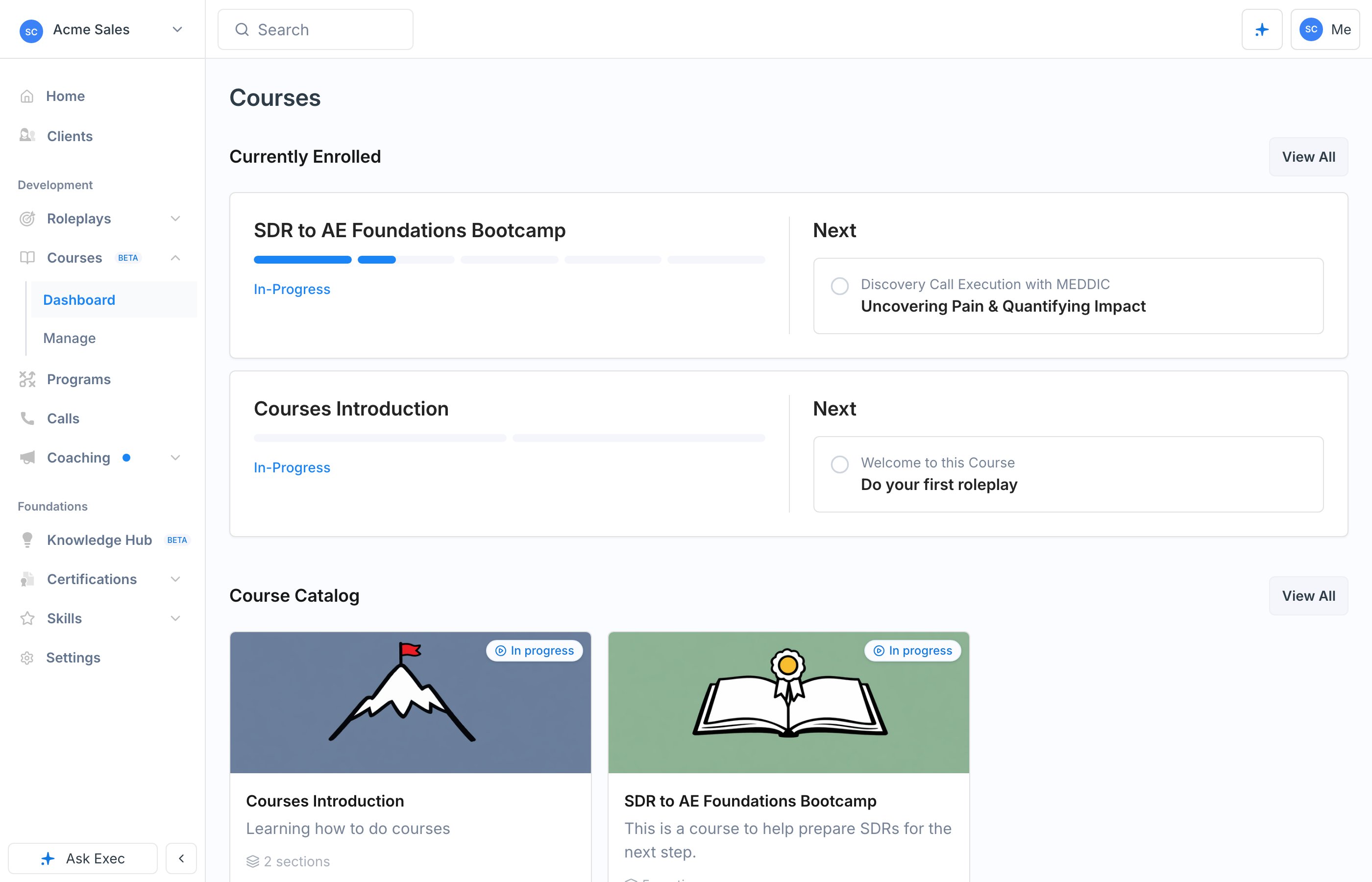
The **Courses** dashboard is the learner's home for training. It has two halves: the courses they are already enrolled in, and a catalog of courses they can enroll in themselves. The catalog grows as you build, so it becomes a library your team can pull from on demand.
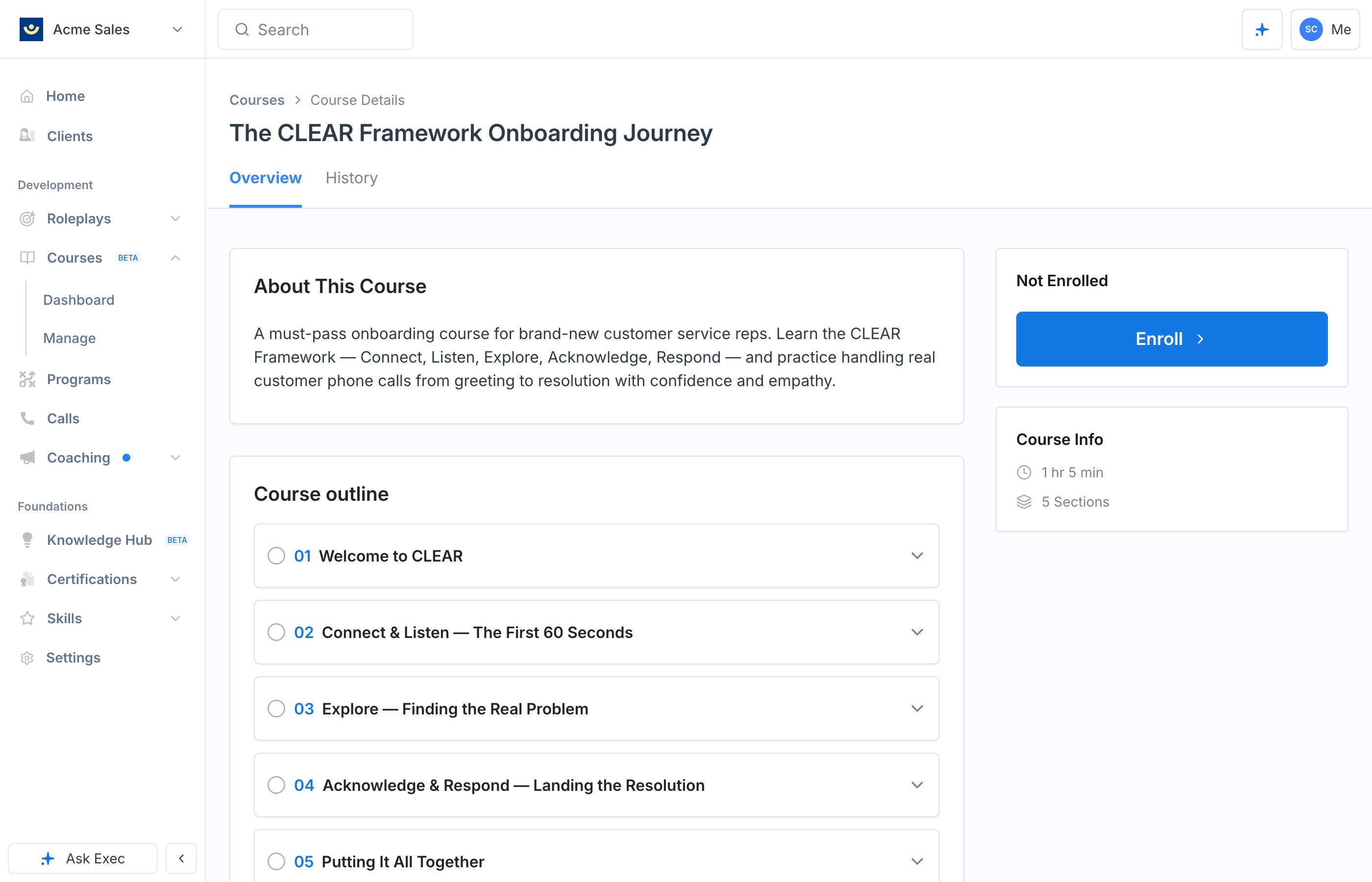
 Opening a course from the catalog shows what it covers, how long it takes, and a full outline of the sections ahead. Enrolling is one click, and it drops the learner straight into the first page.
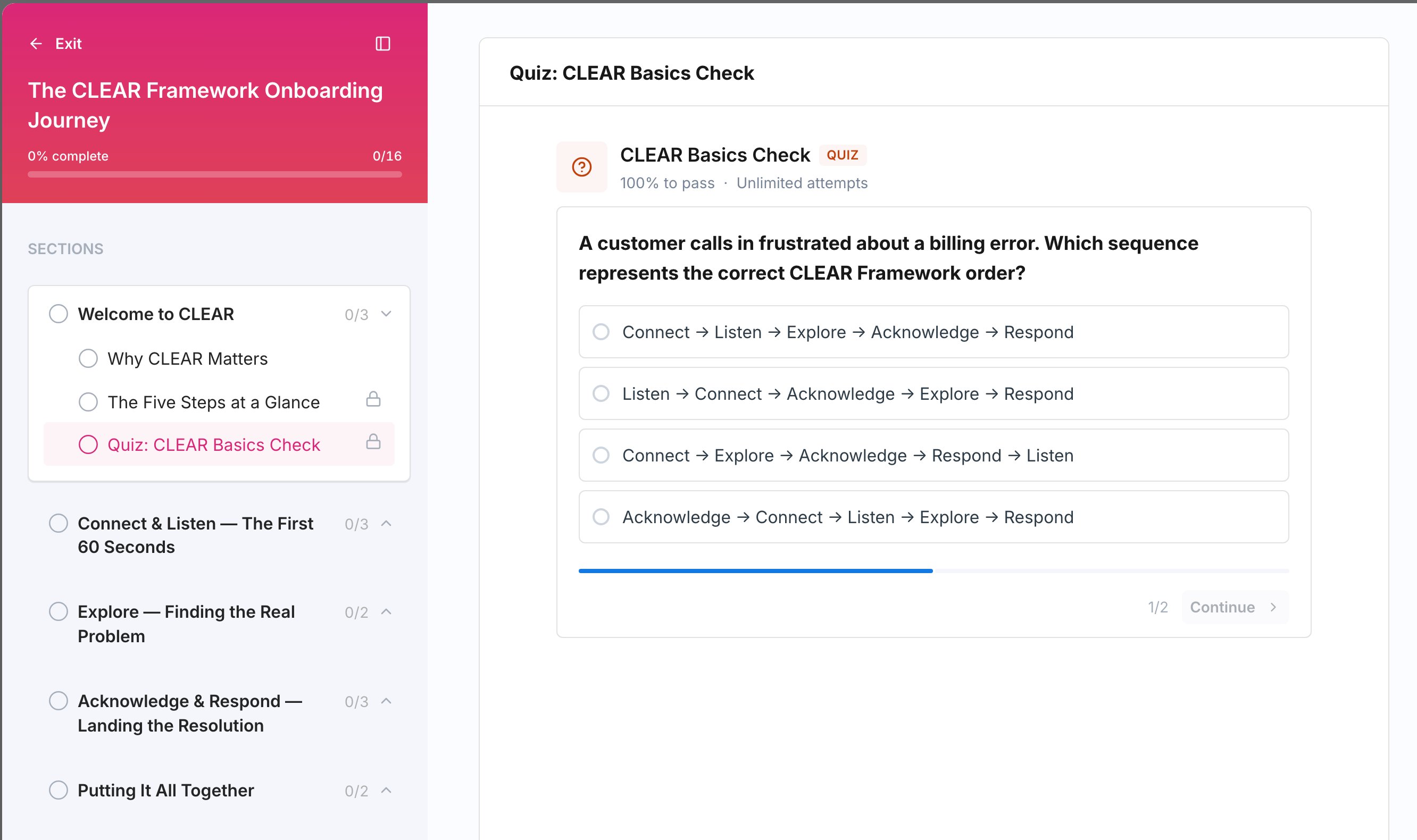
 From there the course runs in a full-screen player. Learners read, watch, and practice their way through each page, hit a quiz or roleplay when the course wants proof they got it, and cannot move past a required block until they pass it. Progress saves as they go.
 [See the full learner experience →](/courses/taking-a-course)
## How a Course Is Structured
Every course follows the same hierarchy:
* A **Course** contains ordered **Sections**
* Each **Section** contains **Pages**
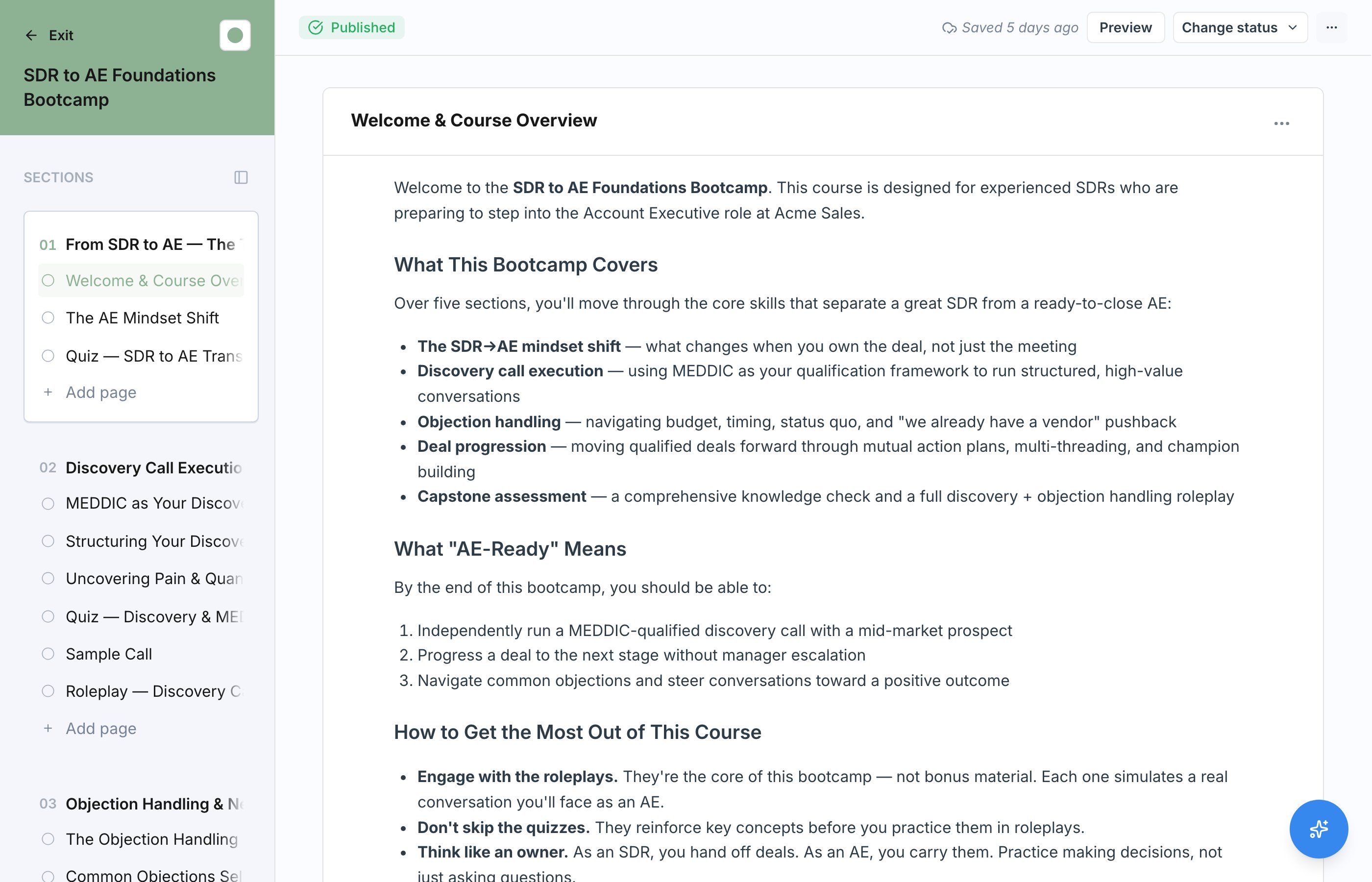
* Each **Page** is a document made of **Blocks**, the actual content units
Sections give your course its shape, pages break each section into digestible steps, and blocks are what learners read, watch, and interact with.
[See the full learner experience →](/courses/taking-a-course)
## How a Course Is Structured
Every course follows the same hierarchy:
* A **Course** contains ordered **Sections**
* Each **Section** contains **Pages**
* Each **Page** is a document made of **Blocks**, the actual content units
Sections give your course its shape, pages break each section into digestible steps, and blocks are what learners read, watch, and interact with.
 ## Three Ways to Build a Course
Course building lives under **Manage**, which workspace admins see in the Courses navigation. **Create course** offers three starting points.
The fastest path. Point the course studio at your existing training material or describe what you want, and it drafts the full course, quizzes and roleplays included. Everything it produces is editable.
Add sections, pages, and blocks yourself for full control over structure and content.
Bring in an existing course as an Articulate Rise SCORM export (.zip).
All three land you in the same editor afterward, so the choice is only about how you get your first draft.
## What Goes on a Page
Every page starts as a rich-text document. Alongside your writing, embed any of these blocks to turn a page from something to read into something to do:
Pull in a page from your [Knowledge Hub](/knowledge-hub/overview) so your source-of-truth content lives in one place.
Embed a video lesson for learners to watch inline.
Drop in a slide deck as part of the lesson.
Check understanding with questions learners must answer to progress.
Attach a resource, worksheet, or reference document to download.
Embed an AI roleplay so learners practice the skill live, right inside the course.
Quizzes and roleplays are what make a course active rather than passive. See [Add a Quiz](/courses/add-quiz) and [Add a Roleplay](/courses/add-roleplay).
## From Draft to Published
A course always has a draft version and, once released, a published version. You build and refine in the draft, publish when it is ready, and learners only ever see the published version.
Add and rearrange sections, pages, and blocks. Nothing is visible to learners yet.
Release the course. It becomes available to enroll and appears in the catalog if you have listed it there.
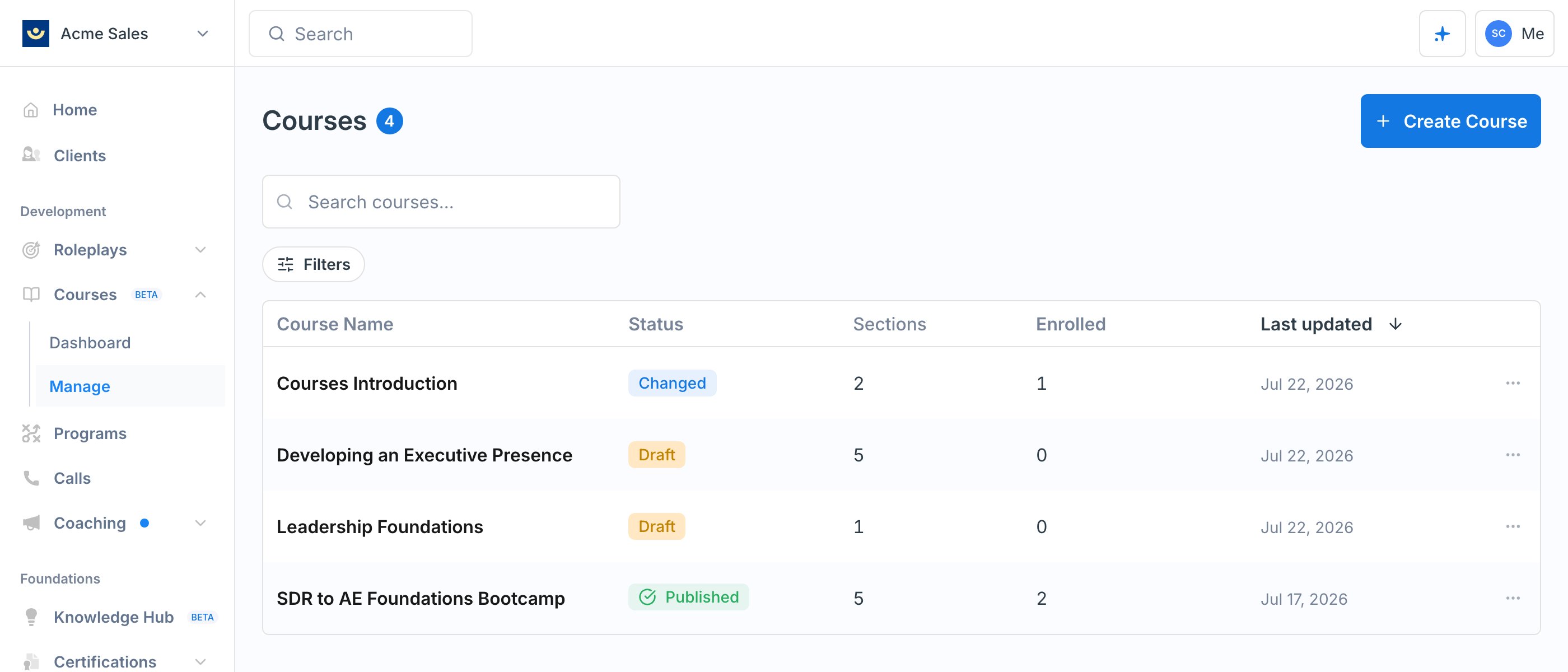
Editing a published course starts a new draft. Learners keep seeing the live version while you work, and the course shows a **Changed** status so you always know the published version is behind your latest edits.
Release your changes to update the live course to the next version.
You manage every course from one place, where its status (Draft, Published, or Changed) is always visible at a glance.
## Three Ways to Build a Course
Course building lives under **Manage**, which workspace admins see in the Courses navigation. **Create course** offers three starting points.
The fastest path. Point the course studio at your existing training material or describe what you want, and it drafts the full course, quizzes and roleplays included. Everything it produces is editable.
Add sections, pages, and blocks yourself for full control over structure and content.
Bring in an existing course as an Articulate Rise SCORM export (.zip).
All three land you in the same editor afterward, so the choice is only about how you get your first draft.
## What Goes on a Page
Every page starts as a rich-text document. Alongside your writing, embed any of these blocks to turn a page from something to read into something to do:
Pull in a page from your [Knowledge Hub](/knowledge-hub/overview) so your source-of-truth content lives in one place.
Embed a video lesson for learners to watch inline.
Drop in a slide deck as part of the lesson.
Check understanding with questions learners must answer to progress.
Attach a resource, worksheet, or reference document to download.
Embed an AI roleplay so learners practice the skill live, right inside the course.
Quizzes and roleplays are what make a course active rather than passive. See [Add a Quiz](/courses/add-quiz) and [Add a Roleplay](/courses/add-roleplay).
## From Draft to Published
A course always has a draft version and, once released, a published version. You build and refine in the draft, publish when it is ready, and learners only ever see the published version.
Add and rearrange sections, pages, and blocks. Nothing is visible to learners yet.
Release the course. It becomes available to enroll and appears in the catalog if you have listed it there.
Editing a published course starts a new draft. Learners keep seeing the live version while you work, and the course shows a **Changed** status so you always know the published version is behind your latest edits.
Release your changes to update the live course to the next version.
You manage every course from one place, where its status (Draft, Published, or Changed) is always visible at a glance.
 Each publish mints a new version, and every version is kept in the version history. Enrollments are pinned to a version, so learners who are partway through never see a course change underneath them, while learners who have not started yet pick up your latest content automatically. See [Publish and Versioning](/courses/publish-and-versioning) for the full rules.
## Get the Course to Your Team
Once a course is published, there are two ways in, and you can use both on the same course:
* **Self-enrollment.** Turn on **Allow self-enrollment** and the course appears in the catalog for learners to enroll themselves. Add group restrictions to limit it to a specific role, region, or team.
* **Direct assignment.** Enroll named people or whole groups yourself, optionally with a **due date** (a soft deadline, after which the learner shows as past due) and a **close date** (a hard cutoff, after which they can no longer complete it).
[Enroll participants →](/courses/enroll-participants)
## Track Who Is Actually Finishing
Every course has a dashboard with completion rates, average time to complete, and an at-risk table for learners who have stalled or gone past due. Nudge them with a reminder email, extend a deadline, or re-enroll anyone who did not complete. The section breakdown shows where learners get stuck, and you can export the full cohort for reporting elsewhere.
[Track progress and analytics →](/courses/track-progress-and-analytics)
## Deadlines, Nudges, and Re-enrollment
When you assign a course, you can set a due date and a hard close date. Exec can send reminder nudges to learners who have not finished yet, and you can re-enroll anyone who did not complete in time to give them a fresh attempt. See [Nudges and Re-enrollment](/courses/nudges-and-reenrollment).
Completing a course can automatically issue a certification. See [Certifications](/courses/certifications) to link one.
## Courses vs Programs
A course is a single, self-paced training unit that someone takes on their own time or by a due date you set. [Programs](/programs/overview) are scheduled cohorts where a group moves through a sequence of activities together on fixed dates. They are separate features: use a course for evergreen, individual training, and a program for cohort-based training with a shared timeline.
## Dive Deeper
The three ways to start a course and set its basic details.
Turn existing material into a full draft course.
Structure your course and organize its content.
Add text, video, slides, files, quizzes, roleplays, and Knowledge Hub articles to a page.
How drafts, publishing, version history, and version pinning work.
Assign directly with deadlines or open self-enrollment through the catalog.
Completion, at-risk learners, and section-by-section progress.
What the experience looks like from the learner's side.
## Getting Help
Need a hand building your first course? Contact us at [hello@exec.com](mailto:hello@exec.com), or ask the AskExec agent in the app.
Each publish mints a new version, and every version is kept in the version history. Enrollments are pinned to a version, so learners who are partway through never see a course change underneath them, while learners who have not started yet pick up your latest content automatically. See [Publish and Versioning](/courses/publish-and-versioning) for the full rules.
## Get the Course to Your Team
Once a course is published, there are two ways in, and you can use both on the same course:
* **Self-enrollment.** Turn on **Allow self-enrollment** and the course appears in the catalog for learners to enroll themselves. Add group restrictions to limit it to a specific role, region, or team.
* **Direct assignment.** Enroll named people or whole groups yourself, optionally with a **due date** (a soft deadline, after which the learner shows as past due) and a **close date** (a hard cutoff, after which they can no longer complete it).
[Enroll participants →](/courses/enroll-participants)
## Track Who Is Actually Finishing
Every course has a dashboard with completion rates, average time to complete, and an at-risk table for learners who have stalled or gone past due. Nudge them with a reminder email, extend a deadline, or re-enroll anyone who did not complete. The section breakdown shows where learners get stuck, and you can export the full cohort for reporting elsewhere.
[Track progress and analytics →](/courses/track-progress-and-analytics)
## Deadlines, Nudges, and Re-enrollment
When you assign a course, you can set a due date and a hard close date. Exec can send reminder nudges to learners who have not finished yet, and you can re-enroll anyone who did not complete in time to give them a fresh attempt. See [Nudges and Re-enrollment](/courses/nudges-and-reenrollment).
Completing a course can automatically issue a certification. See [Certifications](/courses/certifications) to link one.
## Courses vs Programs
A course is a single, self-paced training unit that someone takes on their own time or by a due date you set. [Programs](/programs/overview) are scheduled cohorts where a group moves through a sequence of activities together on fixed dates. They are separate features: use a course for evergreen, individual training, and a program for cohort-based training with a shared timeline.
## Dive Deeper
The three ways to start a course and set its basic details.
Turn existing material into a full draft course.
Structure your course and organize its content.
Add text, video, slides, files, quizzes, roleplays, and Knowledge Hub articles to a page.
How drafts, publishing, version history, and version pinning work.
Assign directly with deadlines or open self-enrollment through the catalog.
Completion, at-risk learners, and section-by-section progress.
What the experience looks like from the learner's side.
## Getting Help
Need a hand building your first course? Contact us at [hello@exec.com](mailto:hello@exec.com), or ask the AskExec agent in the app.