> ## Documentation Index
> Fetch the complete documentation index at: https://docs.exec.com/llms.txt
> Use this file to discover all available pages before exploring further.
# Enroll Participants
> Get learners into a course through catalog self-enrollment or direct assignment with due dates and close dates
Once a course is published, there are two ways to get learners into it: let them enroll themselves from the catalog, or assign it to them directly with deadlines. You can use either path or both on the same course.
Only published courses can be enrolled. If your course is still a draft, [publish it](/courses/publish-and-versioning) first.
## Self-Enrollment Through the Catalog
Learners browse the course catalog and enroll themselves in any course they can access. A learner can self-enroll when:
* **Self-enrollment is on** for the course, which opens it to everyone, or
* The learner belongs to one of the course's **restricted groups**
Both settings live on the course itself: the **Allow self-enrollment** checkbox and the group restrictions that limit enrollment to members of specific groups. Course tags also live on the course and help learners find it in the catalog.
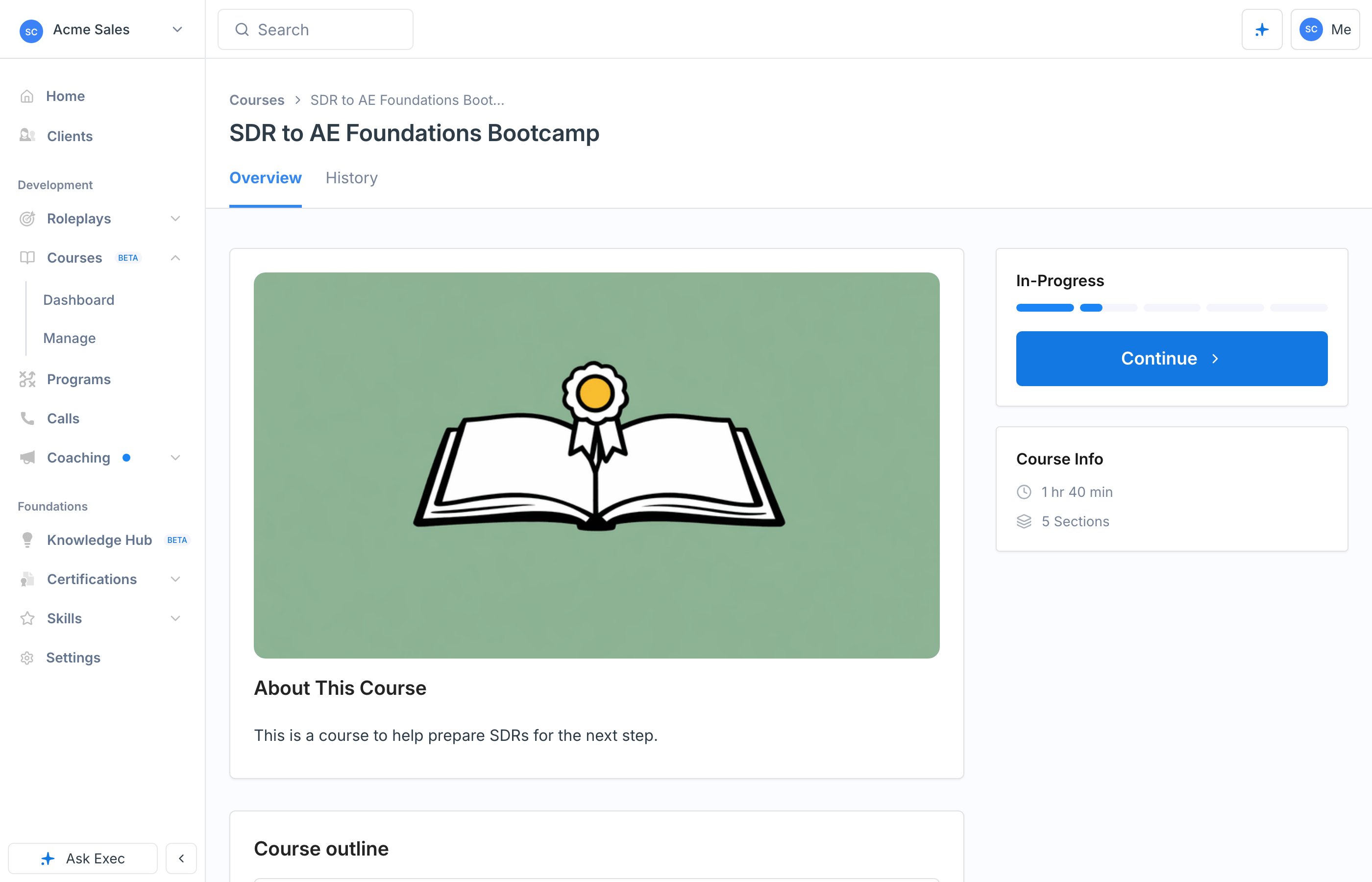 Self-enrollment is a good fit for evergreen training you want available on demand. When you need specific people to complete the course, assign it instead.
## Assign the Course Directly
To enroll specific people or groups, open the **Enroll Participants** sheet from the course.
Self-enrollment is a good fit for evergreen training you want available on demand. When you need specific people to complete the course, assign it instead.
## Assign the Course Directly
To enroll specific people or groups, open the **Enroll Participants** sheet from the course.
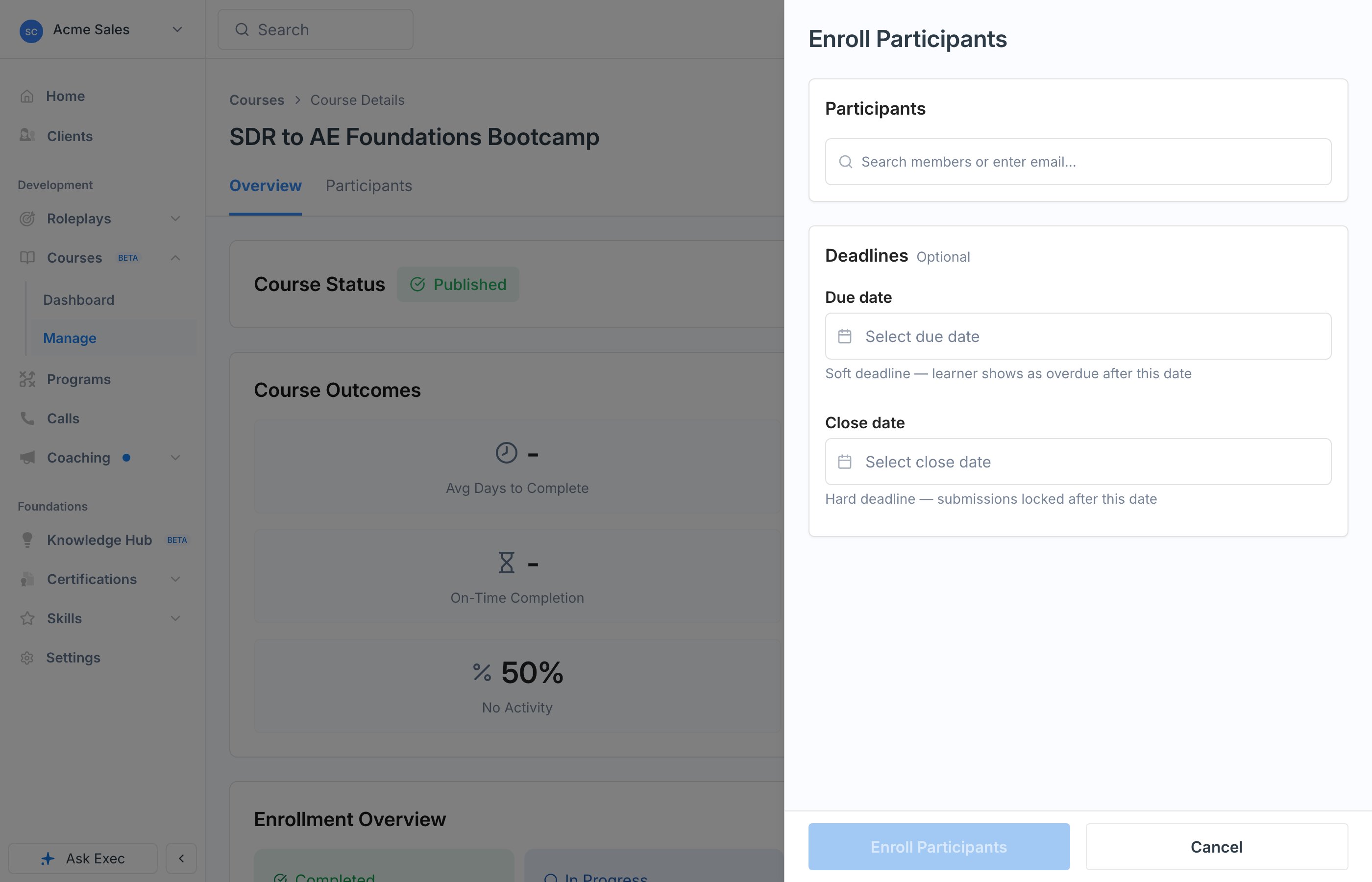 Search for individual members or entire groups and add them to the enrollment. Enrolling a group adds everyone in it.
Add a **Due date**, a **Close date**, both, or neither. See below for how the two differ.
Confirm to enroll everyone you selected. They can start the course right away.
## Due Date vs Close Date
The two deadlines behave differently, and the difference matters:
| Deadline | Type | What happens after it passes |
| -------------- | ------------- | ---------------------------------------------------------------------------------------------------- |
| **Due date** | Soft deadline | The learner shows as overdue (Past Due) but is never locked out. They can still finish the course. |
| **Close date** | Hard deadline | Submissions are locked. The learner can no longer complete the course and moves to Did Not Complete. |
Use a due date when you want accountability without cutting anyone off. Add a close date when the course genuinely has to be done by a certain date, such as compliance training with a firm cutoff.
Learners who blow past a due date show up in the At Risk table on the course dashboard, where you can nudge them or extend their deadline. See [Nudges and Re-enrollment](/courses/nudges-and-reenrollment).
## Next Steps
See who has started, who is on track, and who is falling behind.
Remind overdue learners and give people who did not complete another attempt.
Search for individual members or entire groups and add them to the enrollment. Enrolling a group adds everyone in it.
Add a **Due date**, a **Close date**, both, or neither. See below for how the two differ.
Confirm to enroll everyone you selected. They can start the course right away.
## Due Date vs Close Date
The two deadlines behave differently, and the difference matters:
| Deadline | Type | What happens after it passes |
| -------------- | ------------- | ---------------------------------------------------------------------------------------------------- |
| **Due date** | Soft deadline | The learner shows as overdue (Past Due) but is never locked out. They can still finish the course. |
| **Close date** | Hard deadline | Submissions are locked. The learner can no longer complete the course and moves to Did Not Complete. |
Use a due date when you want accountability without cutting anyone off. Add a close date when the course genuinely has to be done by a certain date, such as compliance training with a firm cutoff.
Learners who blow past a due date show up in the At Risk table on the course dashboard, where you can nudge them or extend their deadline. See [Nudges and Re-enrollment](/courses/nudges-and-reenrollment).
## Next Steps
See who has started, who is on track, and who is falling behind.
Remind overdue learners and give people who did not complete another attempt.