> ## Documentation Index
> Fetch the complete documentation index at: https://docs.exec.com/llms.txt
> Use this file to discover all available pages before exploring further.
# Create a Course
> Start a new course manually, with AI, or by importing a SCORM package, and fill in its basic details
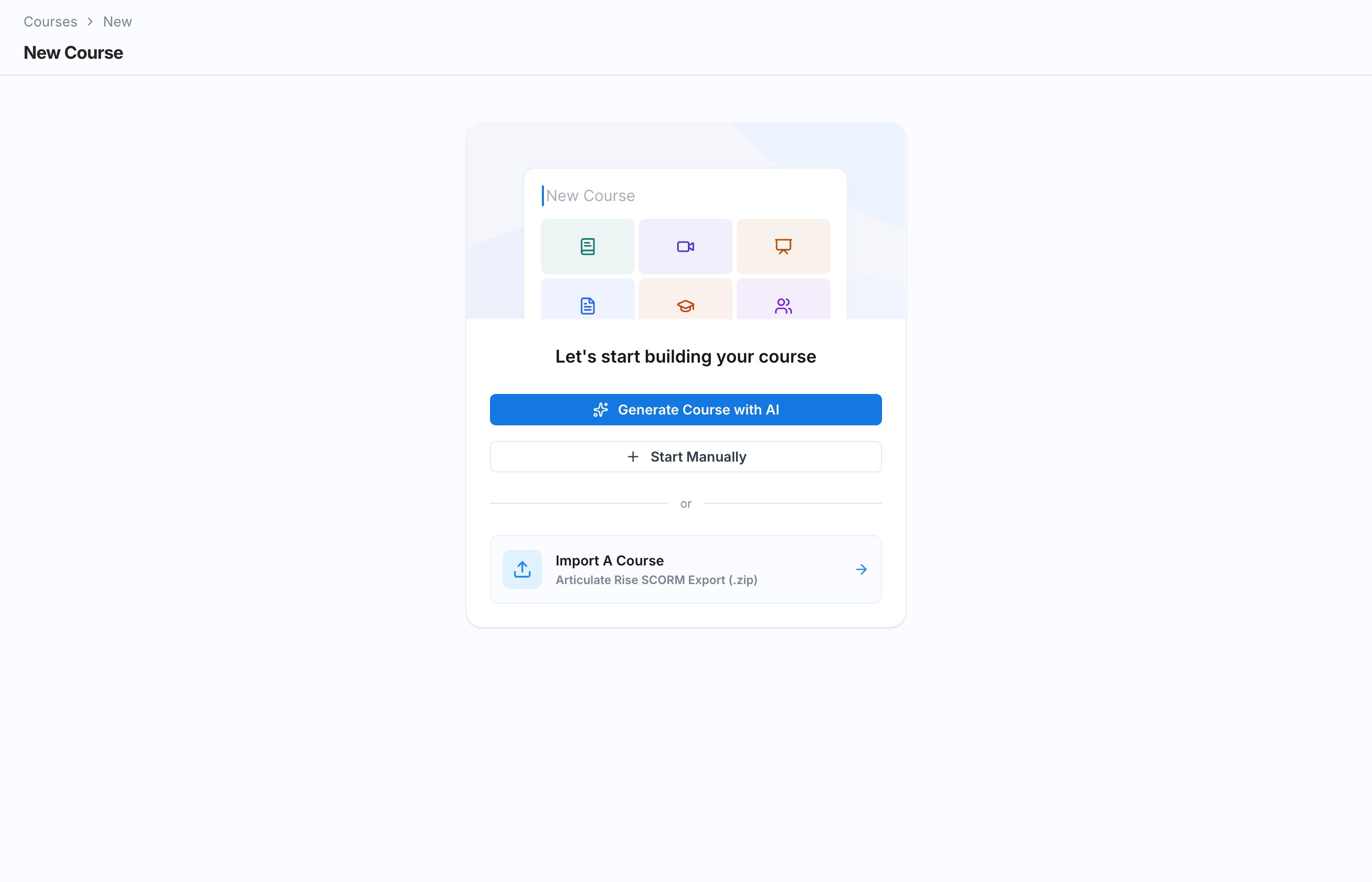
Every course starts on the new course screen, which greets you with "Let's start building your course" and three ways to build:
Fill in the course details, then add sections, pages, and blocks yourself. Full control over structure and content.
Provide your existing material or describe the course, and AI drafts the outline, lessons, quizzes, and roleplays for you to edit.
Bring in an Articulate Rise SCORM Export (.zip) and Exec rebuilds it as a native course.
Manual authoring is the baseline path, and it is what the rest of this page covers. The AI and SCORM paths are alternatives that land you in the same editor afterward.
 ## Create a Course Manually
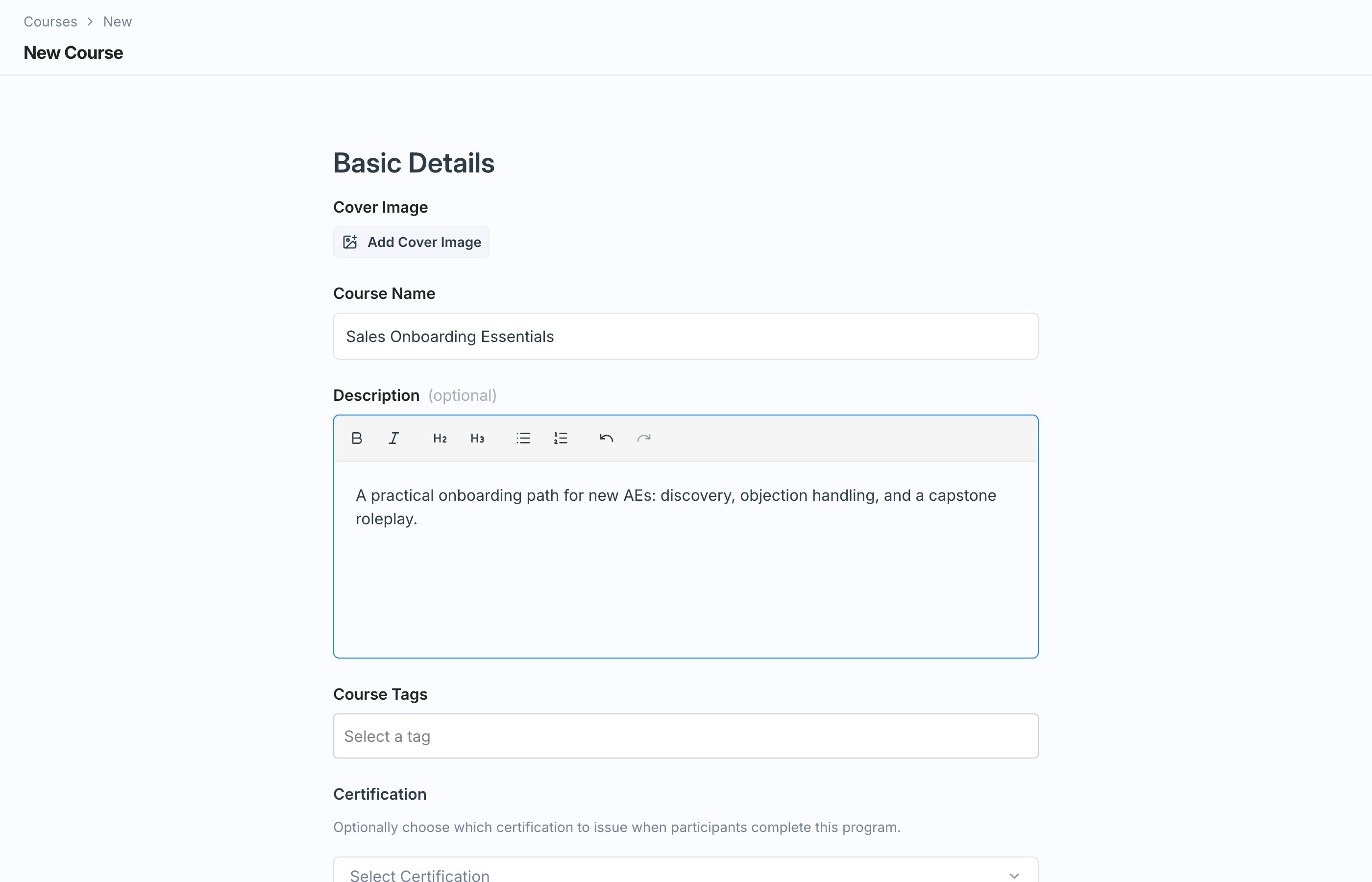
On the new course screen, click **Start Manually**. This opens the **Basic Details** form.
## Create a Course Manually
On the new course screen, click **Start Manually**. This opens the **Basic Details** form.
 | Field | What it does |
| ----------------- | ----------------------------------------------------------------------------------------------------------------------------------------------------- |
| **Cover Image** | Click **Add Cover Image** to give the course a visual identity in the catalog. |
| **Course Name** | The name learners see, for example "Sales Onboarding Essentials". |
| **Description** | Optional rich text describing what the course covers. Shown on the course detail page. |
| **Course Tags** | Select a tag to help organize and find the course. |
| **Certification** | Optional. Select a certification and Exec issues it automatically when a learner completes the course. See [Certifications](/courses/certifications). |
In the **Enrollment** section:
* Check **Allow self-enrollment** to list the course in the catalog so learners can enroll themselves.
* Use **Group Restrictions** to limit enrollment to members of specific groups. Click **Select groups...** and choose the groups.
You can leave both alone for now and [enroll participants](/courses/enroll-participants) directly once the course is published.
Click **Save**. Your course is created as a draft and you land in the editor, ready to [build sections and pages](/courses/build-sections-and-pages).
Creating and editing courses requires admin access.
## Next Steps
Give your course its structure and start adding content.
Assign the course with deadlines or open it up in the catalog.
| Field | What it does |
| ----------------- | ----------------------------------------------------------------------------------------------------------------------------------------------------- |
| **Cover Image** | Click **Add Cover Image** to give the course a visual identity in the catalog. |
| **Course Name** | The name learners see, for example "Sales Onboarding Essentials". |
| **Description** | Optional rich text describing what the course covers. Shown on the course detail page. |
| **Course Tags** | Select a tag to help organize and find the course. |
| **Certification** | Optional. Select a certification and Exec issues it automatically when a learner completes the course. See [Certifications](/courses/certifications). |
In the **Enrollment** section:
* Check **Allow self-enrollment** to list the course in the catalog so learners can enroll themselves.
* Use **Group Restrictions** to limit enrollment to members of specific groups. Click **Select groups...** and choose the groups.
You can leave both alone for now and [enroll participants](/courses/enroll-participants) directly once the course is published.
Click **Save**. Your course is created as a draft and you land in the editor, ready to [build sections and pages](/courses/build-sections-and-pages).
Creating and editing courses requires admin access.
## Next Steps
Give your course its structure and start adding content.
Assign the course with deadlines or open it up in the catalog.