> ## Documentation Index
> Fetch the complete documentation index at: https://docs.exec.com/llms.txt
> Use this file to discover all available pages before exploring further.
# Add a Roleplay
> Put AI conversation practice inside a course by linking an existing roleplay scenario or generating one with AI, with rank and attempt requirements
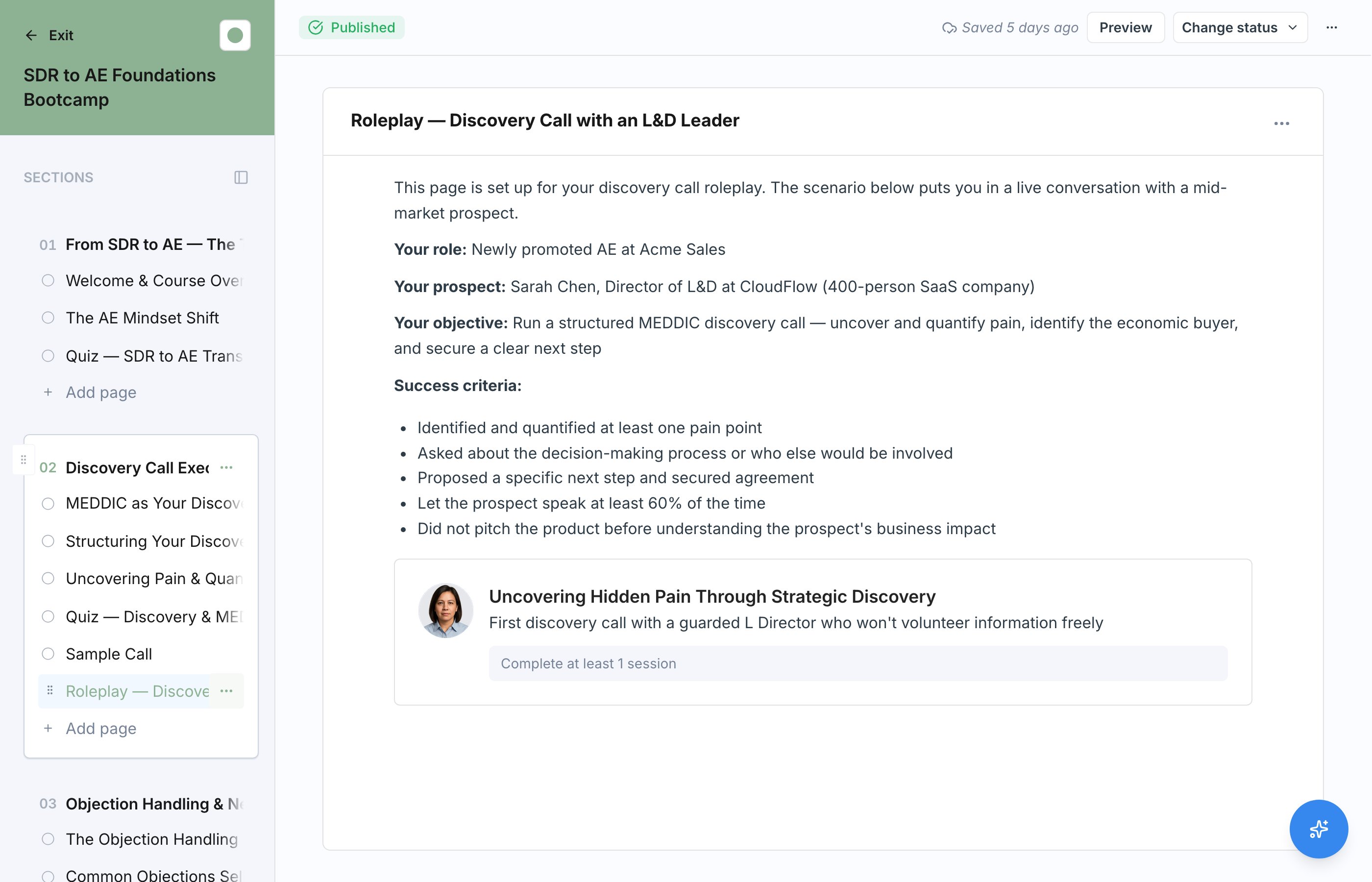
A Roleplay block brings Exec's [AI roleplay practice](/roleplays/ai-agent) into a course. Instead of only reading or watching, learners practice the skill in a live conversation with an AI persona, and you decide how well they need to perform before the course lets them continue.
## Add a Roleplay to a Page
In the course editor, open the slash menu on any page and choose **Roleplay**. See [Add Content Blocks](/courses/add-content-blocks) for how blocks work in general.
The block offers two tabs: **Pick existing** to link a scenario you already have, or **Generate with AI** to draft a new one.
Choose the minimum rank and minimum attempts learners need to complete the block.
 ## Pick an Existing Scenario
If your workspace already has roleplay scenarios, **Pick existing** links one into the course. The scenario itself lives in your roleplay library, so the same scenario can be used in a course and assigned on its own. To learn how scenarios work, see [AI Roleplays](/roleplays/ai-agent).
## Edit the Scenario Behind the Block
A Roleplay block points at a scenario, it does not copy it. If something about the AI character is off, its voice is wrong, or the setup does not add up, open the scenario from the block and edit it the same way you would edit any scenario. Your changes show up in the course, because the course was always pointing at the live scenario. See [Edit a Scenario](/roleplays/edit-scenario).
This applies to AI-generated scenarios too. Generation gives you a starting scenario, and it is fully editable afterward.
## Generate a Scenario with AI
On the **Generate with AI** tab, choose what the scenario should draw from:
* **This page** drafts a scenario based on the content of the current page.
* **This whole section** drafts a scenario covering the full section, useful for a capstone practice at the end.
Regenerate if the first draft is not right. Everything the AI produces is editable before learners see it.
## Completion Settings
| Setting | Options | What it does |
| ---------------- | ----------------------- | -------------------------------------------------------- |
| Minimum rank | Bronze, Silver, or Gold | The rank a learner's roleplay session must earn to count |
| Minimum attempts | Number | How many roleplay attempts the learner must complete |
Use a higher rank for skills the course exists to certify, and a lower bar when the roleplay is there for exposure and reps.
## What Learners See
When a learner reaches the block, they run the roleplay session directly from the course. The page counts as finished once they meet the rank and attempt requirements, and the advance bar unlocks so they can continue. If a learner exhausts their attempts without reaching the required rank, they fail the course with a **Did Not Pass** status. See [Taking a Course](/courses/taking-a-course) for the full learner experience.
Mark the block **Optional** if the roleplay is practice only and should not gate course completion.
## Pick an Existing Scenario
If your workspace already has roleplay scenarios, **Pick existing** links one into the course. The scenario itself lives in your roleplay library, so the same scenario can be used in a course and assigned on its own. To learn how scenarios work, see [AI Roleplays](/roleplays/ai-agent).
## Edit the Scenario Behind the Block
A Roleplay block points at a scenario, it does not copy it. If something about the AI character is off, its voice is wrong, or the setup does not add up, open the scenario from the block and edit it the same way you would edit any scenario. Your changes show up in the course, because the course was always pointing at the live scenario. See [Edit a Scenario](/roleplays/edit-scenario).
This applies to AI-generated scenarios too. Generation gives you a starting scenario, and it is fully editable afterward.
## Generate a Scenario with AI
On the **Generate with AI** tab, choose what the scenario should draw from:
* **This page** drafts a scenario based on the content of the current page.
* **This whole section** drafts a scenario covering the full section, useful for a capstone practice at the end.
Regenerate if the first draft is not right. Everything the AI produces is editable before learners see it.
## Completion Settings
| Setting | Options | What it does |
| ---------------- | ----------------------- | -------------------------------------------------------- |
| Minimum rank | Bronze, Silver, or Gold | The rank a learner's roleplay session must earn to count |
| Minimum attempts | Number | How many roleplay attempts the learner must complete |
Use a higher rank for skills the course exists to certify, and a lower bar when the roleplay is there for exposure and reps.
## What Learners See
When a learner reaches the block, they run the roleplay session directly from the course. The page counts as finished once they meet the rank and attempt requirements, and the advance bar unlocks so they can continue. If a learner exhausts their attempts without reaching the required rank, they fail the course with a **Did Not Pass** status. See [Taking a Course](/courses/taking-a-course) for the full learner experience.
Mark the block **Optional** if the roleplay is practice only and should not gate course completion.