> ## Documentation Index
> Fetch the complete documentation index at: https://docs.exec.com/llms.txt
> Use this file to discover all available pages before exploring further.
# Add a Quiz
> Add a knowledge check to a course page, write questions yourself or generate them with AI, and set the passing score and attempt limits
A Quiz block (also called a knowledge check) tests what learners have absorbed before they move on. You decide the questions, the passing score, and how many attempts learners get. Quizzes count toward course completion unless you mark the block optional.
## Add a Quiz to a Page
In the course editor, open the slash menu on any page and choose **Quiz**. See [Add Content Blocks](/courses/add-content-blocks) for how blocks work in general.
The block offers two tabs: **Build from scratch** to write questions yourself, or **Generate with AI** to draft them for you.
Set the passing score, the maximum attempts, and whether the quiz renders inline on the page.
 ## Generate Questions with AI
On the **Generate with AI** tab, choose what the quiz should cover:
* **This page** generates questions from the content of the current page.
* **This whole section** generates questions from every page in the section, useful for an end-of-section check.
If the first draft misses the mark, regenerate for a new set. Generated questions are fully editable, so treat them as a head start and tighten the wording before you publish.
Put a page-scoped quiz right after the content it tests, and a section-scoped quiz on the last page of the section.
## Quiz Settings
Open the quiz's block settings to change any of these.
## Generate Questions with AI
On the **Generate with AI** tab, choose what the quiz should cover:
* **This page** generates questions from the content of the current page.
* **This whole section** generates questions from every page in the section, useful for an end-of-section check.
If the first draft misses the mark, regenerate for a new set. Generated questions are fully editable, so treat them as a head start and tighten the wording before you publish.
Put a page-scoped quiz right after the content it tests, and a section-scoped quiz on the last page of the section.
## Quiz Settings
Open the quiz's block settings to change any of these.
 | Setting | Default | What it does |
| ---------------------------------- | ------- | -------------------------------------------------------------------------------------------------------------------------------------- |
| Require a passing score | On | Whether a minimum score is needed to complete the block. Turn it off and answering every question is enough. |
| Passing score | 80% | The score a learner needs to pass. Set it as a percentage or as a number of questions correct out of the total. The floor is 10%. |
| Show correct answers during review | Off | When on, correct answers are highlighted after a failed attempt. When off, learners only see which of their own selections were wrong. |
| Allow retakes | On | Whether learners get more than one attempt. Turn it off to make the quiz single-attempt. |
| Number of total attempts | 3 | How many tries a learner gets before the quiz is failed. Choose 2, 3, 4, 5, or **Unlimited**. |
| Display mode | Card | Whether the quiz appears as a card, inline on the page, or as a full page of its own. |
Questions can carry an explanation, shown to the learner during review, either for the question as a whole or for the specific option they picked. An explanation turns a wrong answer into a teaching moment instead of just a red mark.
## What Learners See
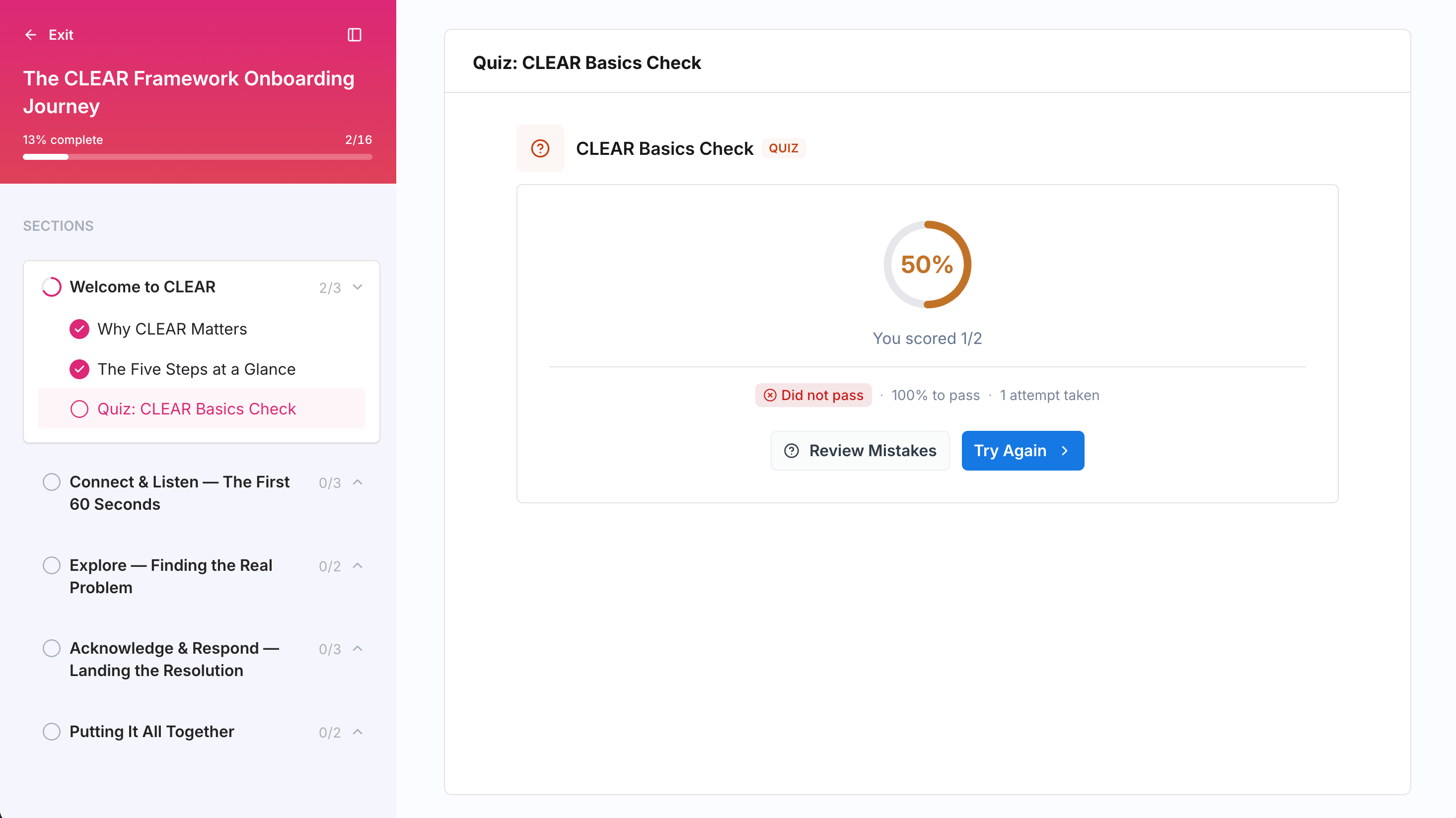
In the course player, the quiz shows the percentage needed to pass and how many attempts remain. After submitting, learners see **Passed** or **Did not pass** along with their remaining attempts, and can choose:
* **Review Mistakes** to see which answers were wrong
* **Try Again** to use another attempt
* **Continue** to move on after passing
If a learner runs out of attempts without passing, they fail the course with a **Did Not Pass** status. See [Taking a Course](/courses/taking-a-course) for the full learner experience, including what happens after a failure.
Mark the block **Optional** if the quiz is for self-assessment only and should not block completion.
| Setting | Default | What it does |
| ---------------------------------- | ------- | -------------------------------------------------------------------------------------------------------------------------------------- |
| Require a passing score | On | Whether a minimum score is needed to complete the block. Turn it off and answering every question is enough. |
| Passing score | 80% | The score a learner needs to pass. Set it as a percentage or as a number of questions correct out of the total. The floor is 10%. |
| Show correct answers during review | Off | When on, correct answers are highlighted after a failed attempt. When off, learners only see which of their own selections were wrong. |
| Allow retakes | On | Whether learners get more than one attempt. Turn it off to make the quiz single-attempt. |
| Number of total attempts | 3 | How many tries a learner gets before the quiz is failed. Choose 2, 3, 4, 5, or **Unlimited**. |
| Display mode | Card | Whether the quiz appears as a card, inline on the page, or as a full page of its own. |
Questions can carry an explanation, shown to the learner during review, either for the question as a whole or for the specific option they picked. An explanation turns a wrong answer into a teaching moment instead of just a red mark.
## What Learners See
In the course player, the quiz shows the percentage needed to pass and how many attempts remain. After submitting, learners see **Passed** or **Did not pass** along with their remaining attempts, and can choose:
* **Review Mistakes** to see which answers were wrong
* **Try Again** to use another attempt
* **Continue** to move on after passing
If a learner runs out of attempts without passing, they fail the course with a **Did Not Pass** status. See [Taking a Course](/courses/taking-a-course) for the full learner experience, including what happens after a failure.
Mark the block **Optional** if the quiz is for self-assessment only and should not block completion.