> ## Documentation Index
> Fetch the complete documentation index at: https://docs.exec.com/llms.txt
> Use this file to discover all available pages before exploring further.
# Add Content Blocks
> Insert the seven block types on a course page and configure each one, from videos and quizzes to files and roleplays
Blocks are the content units of a course. Each page in your course is a rich-text document, and you build it by typing prose and inserting blocks where you want learners to read, watch, practice, or get tested. This page covers all seven block types; see [Build Sections and Pages](/courses/build-sections-and-pages) for the structure around them.
## Inserting a Block
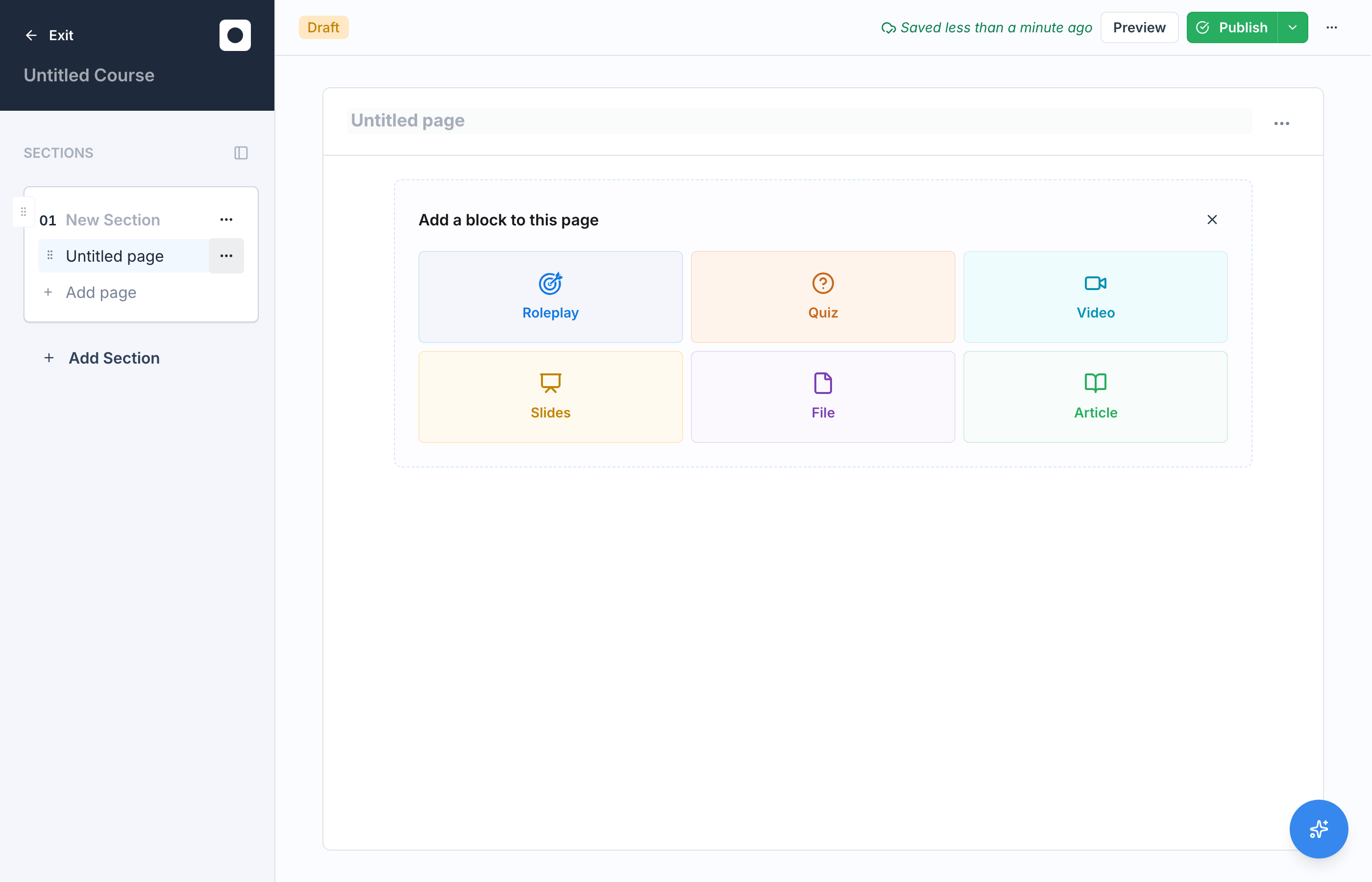
Open a page in the editor and use the slash menu to add a block. Six block types are insertable from the menu: **Roleplay**, **Quiz**, **Video**, **Slides**, **File**, and **Article**. The seventh type, plain text, is not a menu item; you simply type prose directly on the page.
 ## The Seven Block Types
| Block | What it does | Configuration |
| -------- | ----------------------------------------------------------------------------------- | --------------------------------------------------------------------------------------------------------- |
| Text | Rich text written directly on the page | Just type; no block settings |
| Article | Links one or more [Knowledge Hub pages](/knowledge-hub/pages), each shown as a card | "Add articles from Knowledge Hub"; optional acknowledgment |
| Video | A video learners watch | Source from a URL, an upload, or Knowledge Hub; minimum watch percentage (default 80%) |
| Slides | A slide deck presented on the page | Source from a deck URL, a PDF upload, or Knowledge Hub; optional minimum time |
| Quiz | A knowledge check | Questions, passing score (default 80%), max attempts (default 3), "Render inline" toggle |
| File | A file shared with learners | Source from an upload or Knowledge Hub; render inline or as a download card |
| Roleplay | AI conversation practice | Link existing scenario(s) or AI-generate one; minimum rank (Bronze, Silver, or Gold) and minimum attempts |
## The Seven Block Types
| Block | What it does | Configuration |
| -------- | ----------------------------------------------------------------------------------- | --------------------------------------------------------------------------------------------------------- |
| Text | Rich text written directly on the page | Just type; no block settings |
| Article | Links one or more [Knowledge Hub pages](/knowledge-hub/pages), each shown as a card | "Add articles from Knowledge Hub"; optional acknowledgment |
| Video | A video learners watch | Source from a URL, an upload, or Knowledge Hub; minimum watch percentage (default 80%) |
| Slides | A slide deck presented on the page | Source from a deck URL, a PDF upload, or Knowledge Hub; optional minimum time |
| Quiz | A knowledge check | Questions, passing score (default 80%), max attempts (default 3), "Render inline" toggle |
| File | A file shared with learners | Source from an upload or Knowledge Hub; render inline or as a download card |
| Roleplay | AI conversation practice | Link existing scenario(s) or AI-generate one; minimum rank (Bronze, Silver, or Gold) and minimum attempts |
 ## Block Settings That Apply Everywhere
Two settings are available on blocks regardless of type:
* **Optional.** An optional block is available to learners but not required for completing the course. Use it for supplementary material.
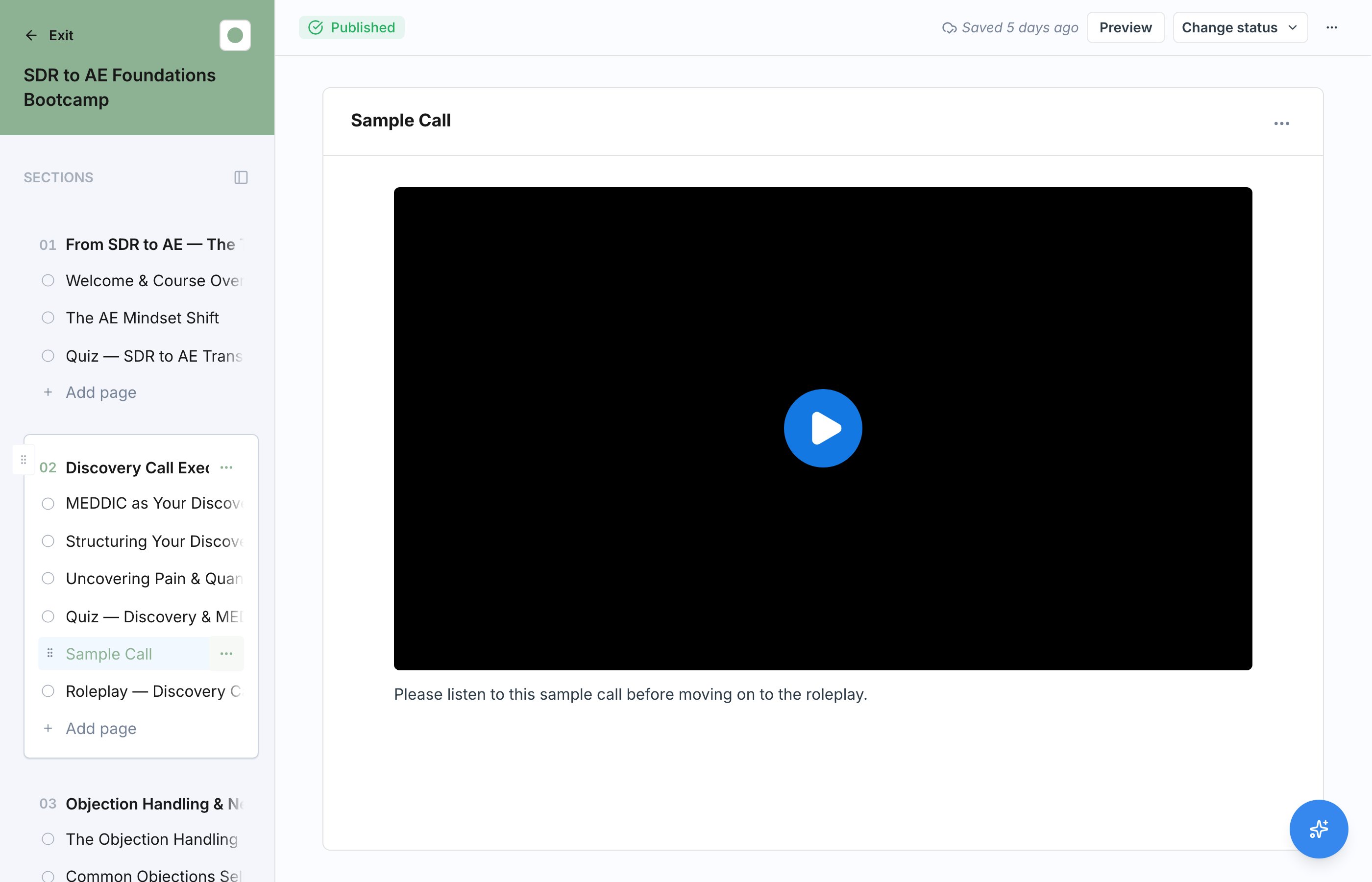
* **Display mode.** Choose how the block presents itself: as a **Card** the learner clicks into, **Inline** within the page, or as a **Full page** of its own. Card is available on every block type; Inline and Full page depend on the type, so an article or roleplay does not offer Inline.
Open a block's settings from the block itself to change its display mode, rename it, and reach the type-specific settings below.
## Quiz and Roleplay Blocks
Quiz and Roleplay are the two graded block types, and both support AI generation inside the editor:
* **Quiz** offers "Generate with AI" and "Build from scratch" tabs. Learners must hit the passing score within the attempt limit, so these blocks can gate completion. See [Add a Quiz](/courses/add-quiz) for question authoring and settings.
* **Roleplay** offers "Generate with AI" and "Pick existing" tabs, and you set the minimum rank and minimum attempts a learner needs. See [Add a Roleplay](/courses/add-roleplay) for the full setup, and [AI Roleplays](/roleplays/ai-agent) for how scenarios work.
AI generation for both is scoped to "This page" or "This whole section", and you can regenerate if the first draft is not right.
Requirements are what make blocks meaningful. A video with a minimum watch percentage, a quiz with a passing score, or a roleplay with a minimum rank all hold learners to a standard, while optional blocks let you add depth without adding burden.
## Next Steps
Write questions, set the passing score, and control attempts.
Link or generate a scenario and set rank and attempt requirements.
## Block Settings That Apply Everywhere
Two settings are available on blocks regardless of type:
* **Optional.** An optional block is available to learners but not required for completing the course. Use it for supplementary material.
* **Display mode.** Choose how the block presents itself: as a **Card** the learner clicks into, **Inline** within the page, or as a **Full page** of its own. Card is available on every block type; Inline and Full page depend on the type, so an article or roleplay does not offer Inline.
Open a block's settings from the block itself to change its display mode, rename it, and reach the type-specific settings below.
## Quiz and Roleplay Blocks
Quiz and Roleplay are the two graded block types, and both support AI generation inside the editor:
* **Quiz** offers "Generate with AI" and "Build from scratch" tabs. Learners must hit the passing score within the attempt limit, so these blocks can gate completion. See [Add a Quiz](/courses/add-quiz) for question authoring and settings.
* **Roleplay** offers "Generate with AI" and "Pick existing" tabs, and you set the minimum rank and minimum attempts a learner needs. See [Add a Roleplay](/courses/add-roleplay) for the full setup, and [AI Roleplays](/roleplays/ai-agent) for how scenarios work.
AI generation for both is scoped to "This page" or "This whole section", and you can regenerate if the first draft is not right.
Requirements are what make blocks meaningful. A video with a minimum watch percentage, a quiz with a passing score, or a roleplay with a minimum rank all hold learners to a standard, while optional blocks let you add depth without adding burden.
## Next Steps
Write questions, set the passing score, and control attempts.
Link or generate a scenario and set rank and attempt requirements.