> ## Documentation Index
> Fetch the complete documentation index at: https://docs.exec.com/llms.txt
> Use this file to discover all available pages before exploring further.
# Schedule a Coaching Session
> Book a one-on-one session with your coach using your coaching credits
Once you have a coach and some credits, you can book a one-on-one session in a couple of minutes. You pick the type of session, choose a time that works for you, and confirm - the session then shows up in your Sessions list.
Don't have a coach yet? Go to **Coaching > Dashboard** and click **Find My Coach** (or **Browse Coaches**) to get matched first. Once a coach is on your dashboard, you can schedule with them anytime.
***
## How to book a session
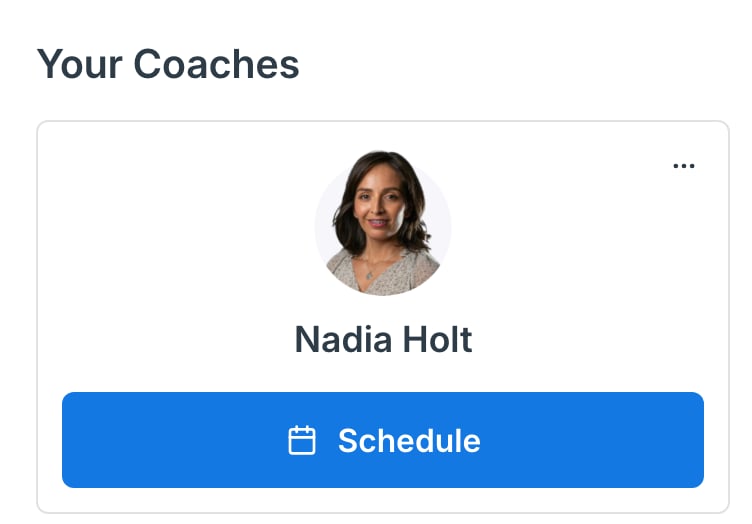
Go to **Coaching > Dashboard**. Under **Your Coaches** you'll see everyone you've been matched with. Find the coach you want to work with and click **Schedule** on their card.
 Prefer to start from your sessions? **Coaching > Sessions** has a **Schedule Session** button that does the same thing - you'll just pick the coach first.
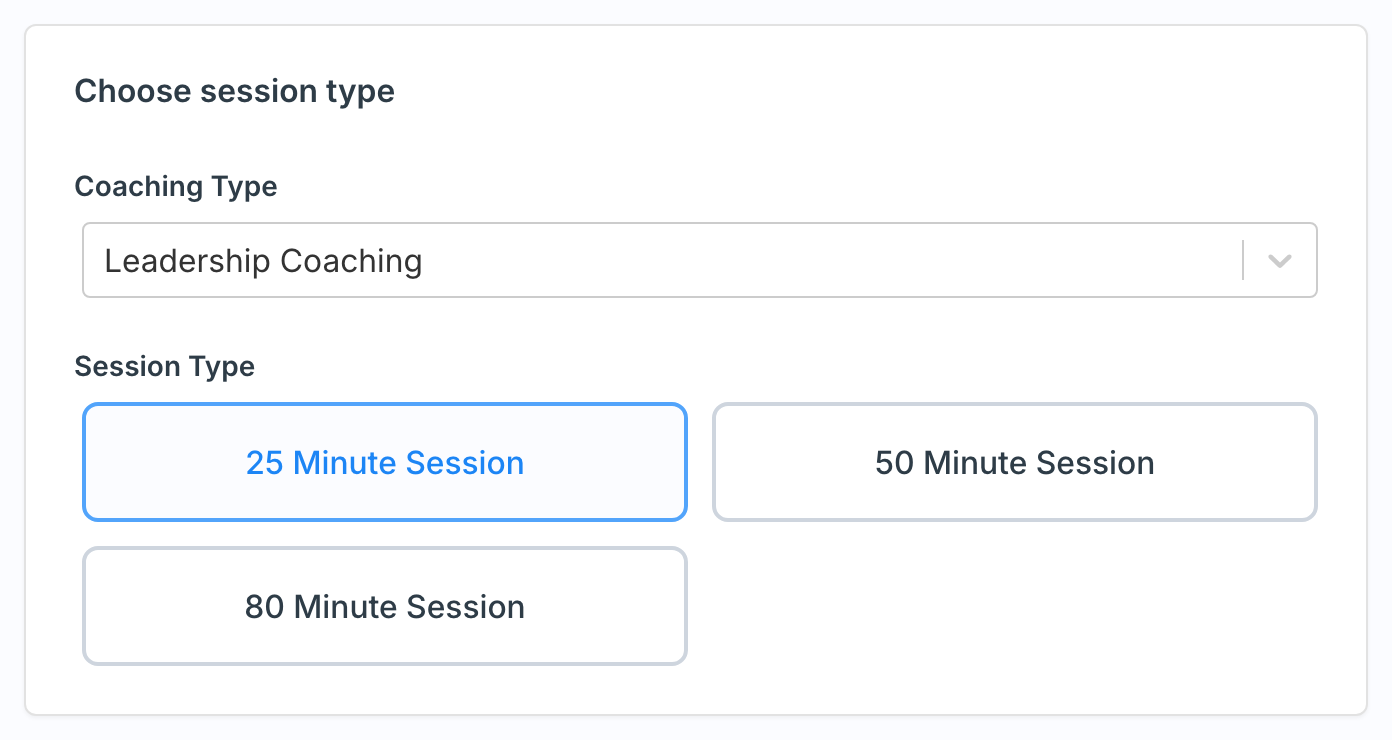
Pick a **Coaching Type** (the area you want to work on) from the dropdown, then choose a **Session Type** - the length of the session. Each option uses a set number of credits.
Prefer to start from your sessions? **Coaching > Sessions** has a **Schedule Session** button that does the same thing - you'll just pick the coach first.
Pick a **Coaching Type** (the area you want to work on) from the dropdown, then choose a **Session Type** - the length of the session. Each option uses a set number of credits.
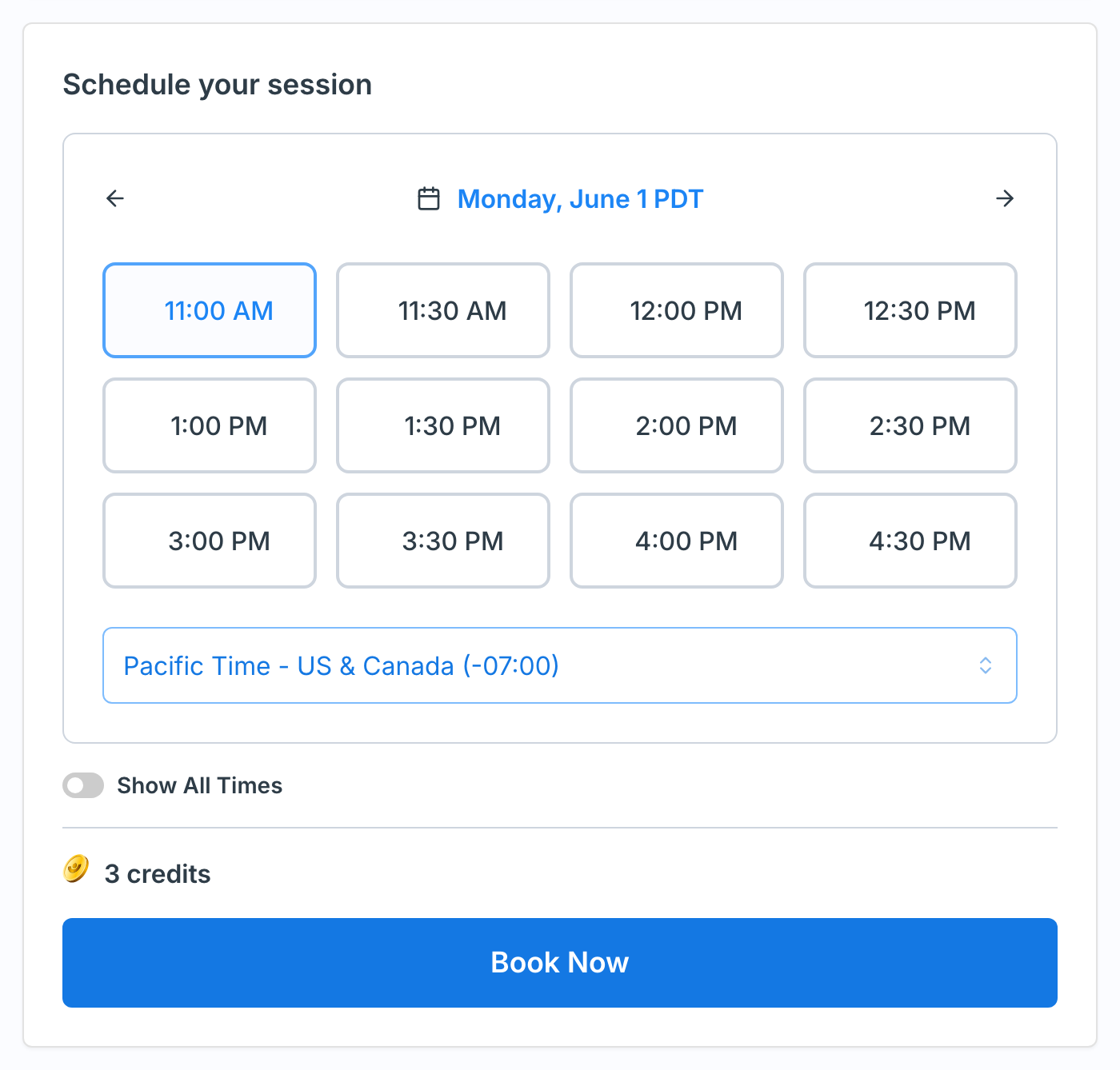
 Pick a day, then a time. Use the arrows to step one day at a time, or click the date next to the calendar icon to open the full calendar and jump to any available day. Once a day is selected, click an available time slot. Times are shown in your local timezone, which you can change with the dropdown below. The credit cost appears at the bottom - click **Book Now** to confirm.
 Some coaches review booking requests before confirming. For those coaches the button reads **Request Booking** instead of **Book Now**, and you can select more than one time that works for you - the coach picks one and confirms.
***
## Credits
Booking a session uses credits from your balance, shown as **Available to you** on the Sessions page and Coaching Dashboard. The number of credits a session costs depends on its length, and it's displayed right above the **Book Now** button before you confirm.
If you're out of credits, you'll see a **Buy Credits** prompt. Click it to top up, then come back and finish booking. If your workspace handles credits for you, reach out to your admin instead.
***
## What happens after you book
Once your booking goes through:
* The session appears in your **Sessions** list and on your **Coaching Dashboard** under upcoming sessions.
* You and your coach both get an email confirmation with the session details.
* Open the session anytime from **Coaching > Sessions** to see the meeting link, the time, and the cancellation policy.
Need to change or drop the session later? Open it from your Sessions list and use the three-dot menu to **Reschedule** or **Cancel**. See [Cancel a Coaching Session](/coaching/cancel-session) for how refunds work.
***
## Getting help
If something goes wrong - a time you expected isn't available, your credits didn't apply, or the booking won't confirm - email [hello@exec.com](mailto:hello@exec.com) and we'll help you get booked.
Some coaches review booking requests before confirming. For those coaches the button reads **Request Booking** instead of **Book Now**, and you can select more than one time that works for you - the coach picks one and confirms.
***
## Credits
Booking a session uses credits from your balance, shown as **Available to you** on the Sessions page and Coaching Dashboard. The number of credits a session costs depends on its length, and it's displayed right above the **Book Now** button before you confirm.
If you're out of credits, you'll see a **Buy Credits** prompt. Click it to top up, then come back and finish booking. If your workspace handles credits for you, reach out to your admin instead.
***
## What happens after you book
Once your booking goes through:
* The session appears in your **Sessions** list and on your **Coaching Dashboard** under upcoming sessions.
* You and your coach both get an email confirmation with the session details.
* Open the session anytime from **Coaching > Sessions** to see the meeting link, the time, and the cancellation policy.
Need to change or drop the session later? Open it from your Sessions list and use the three-dot menu to **Reschedule** or **Cancel**. See [Cancel a Coaching Session](/coaching/cancel-session) for how refunds work.
***
## Getting help
If something goes wrong - a time you expected isn't available, your credits didn't apply, or the booking won't confirm - email [hello@exec.com](mailto:hello@exec.com) and we'll help you get booked.