> ## Documentation Index
> Fetch the complete documentation index at: https://docs.exec.com/llms.txt
> Use this file to discover all available pages before exploring further.
# Create a Certification
> Formally recognize learners for completing training or demonstrating specific expertise
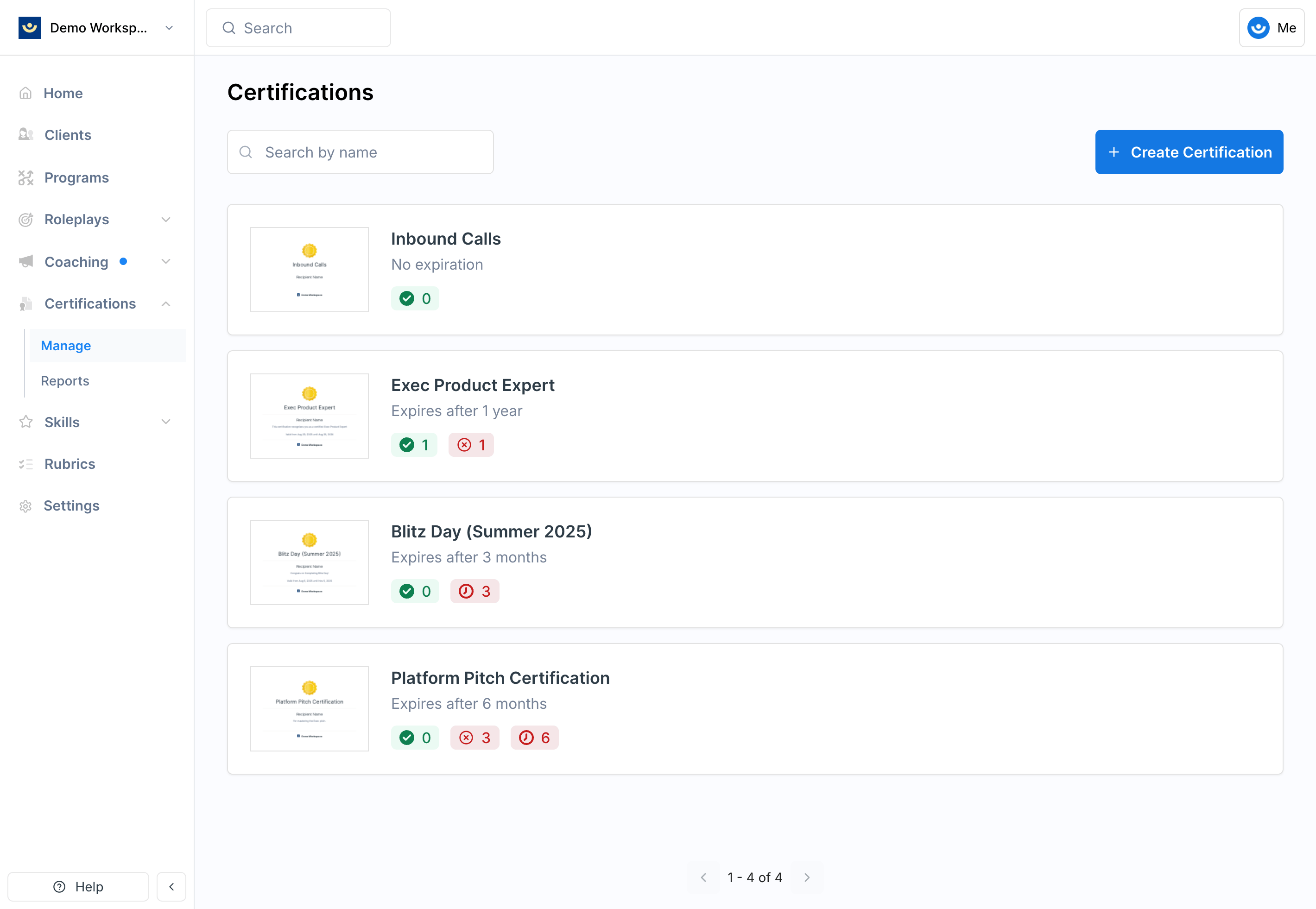
Certifications in Exec let you formally recognize learners for completing training or demonstrating specific expertise. Each certification has a title, description, and expiration rules — and once created, it can be issued to learners [manually](/certificates/certify-others) or [automatically through program completion](/programs/certifications).
Certifications must be enabled on your workspace. Check for **Certifications** in the left-hand navigation — if you don't see it, contact us at [hello@exec.com](mailto:hello@exec.com) to have it turned on.
***
## How to Create a Certification
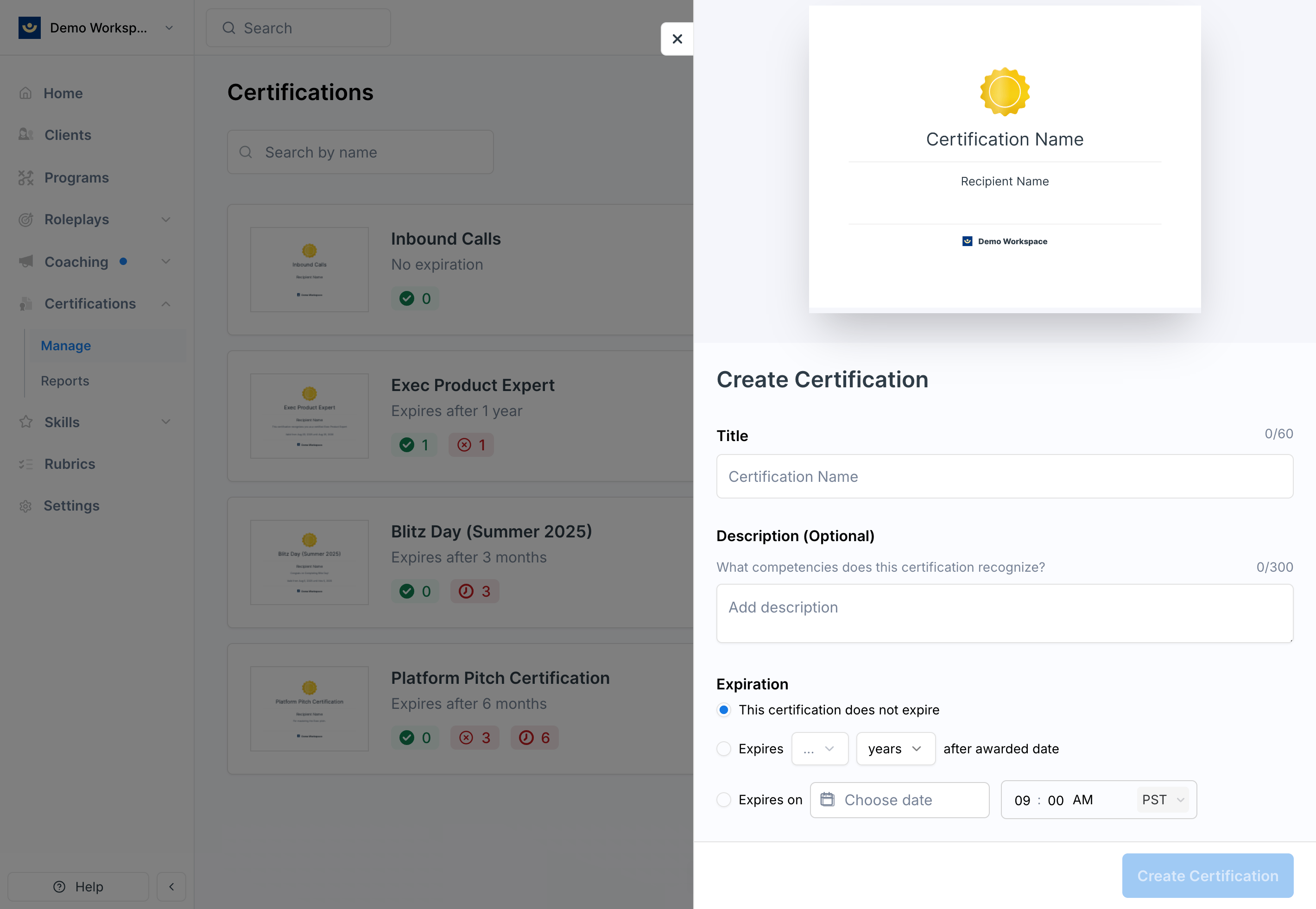 The name of the certification, visible to learners (e.g., "Sales Excellence Certification").
Supporting text displayed on the certification PDF (e.g., "This certification recognizes demonstrated proficiency in discovery and objection handling").
Determines how long the certification remains valid:
* **Never expires** — learners remain certified indefinitely
* **Relative expiration** — valid for a set period from the issue date (e.g., one year)
* **Specific date** — expires for everyone on a set calendar day
Once saved, the certification is ready to issue to learners.
***
## How Learners Experience It
When a learner is certified, they receive an email notification containing the title, description, workspace logo, and a link to view or download their certification PDF.
***
## Automatic Certification via Programs
You can link a certification to a [program](/programs/overview) so that participants are automatically certified when they complete all required components. This eliminates the need to manually issue certifications for cohort-based training.
[Learn how to set up automatic certification ->](/programs/certifications)
***
## Tips
* **Be specific in your titles** — learners should immediately understand what the certification represents
* **Use the description for recognition** — highlight what the certification validates and why it matters
* **Set thoughtful expiration rules** — time-limited certifications (e.g., one year) encourage learners to refresh their skills and demonstrate continued proficiency
***
## Getting Help
**Need help?** Contact us at [hello@exec.com](mailto:hello@exec.com) for guidance on setting up certifications or enabling the feature for your workspace.
The name of the certification, visible to learners (e.g., "Sales Excellence Certification").
Supporting text displayed on the certification PDF (e.g., "This certification recognizes demonstrated proficiency in discovery and objection handling").
Determines how long the certification remains valid:
* **Never expires** — learners remain certified indefinitely
* **Relative expiration** — valid for a set period from the issue date (e.g., one year)
* **Specific date** — expires for everyone on a set calendar day
Once saved, the certification is ready to issue to learners.
***
## How Learners Experience It
When a learner is certified, they receive an email notification containing the title, description, workspace logo, and a link to view or download their certification PDF.
***
## Automatic Certification via Programs
You can link a certification to a [program](/programs/overview) so that participants are automatically certified when they complete all required components. This eliminates the need to manually issue certifications for cohort-based training.
[Learn how to set up automatic certification ->](/programs/certifications)
***
## Tips
* **Be specific in your titles** — learners should immediately understand what the certification represents
* **Use the description for recognition** — highlight what the certification validates and why it matters
* **Set thoughtful expiration rules** — time-limited certifications (e.g., one year) encourage learners to refresh their skills and demonstrate continued proficiency
***
## Getting Help
**Need help?** Contact us at [hello@exec.com](mailto:hello@exec.com) for guidance on setting up certifications or enabling the feature for your workspace.