> ## Documentation Index
> Fetch the complete documentation index at: https://docs.exec.com/llms.txt
> Use this file to discover all available pages before exploring further.
# Certify Others
> Issue certifications to learners in your workspace
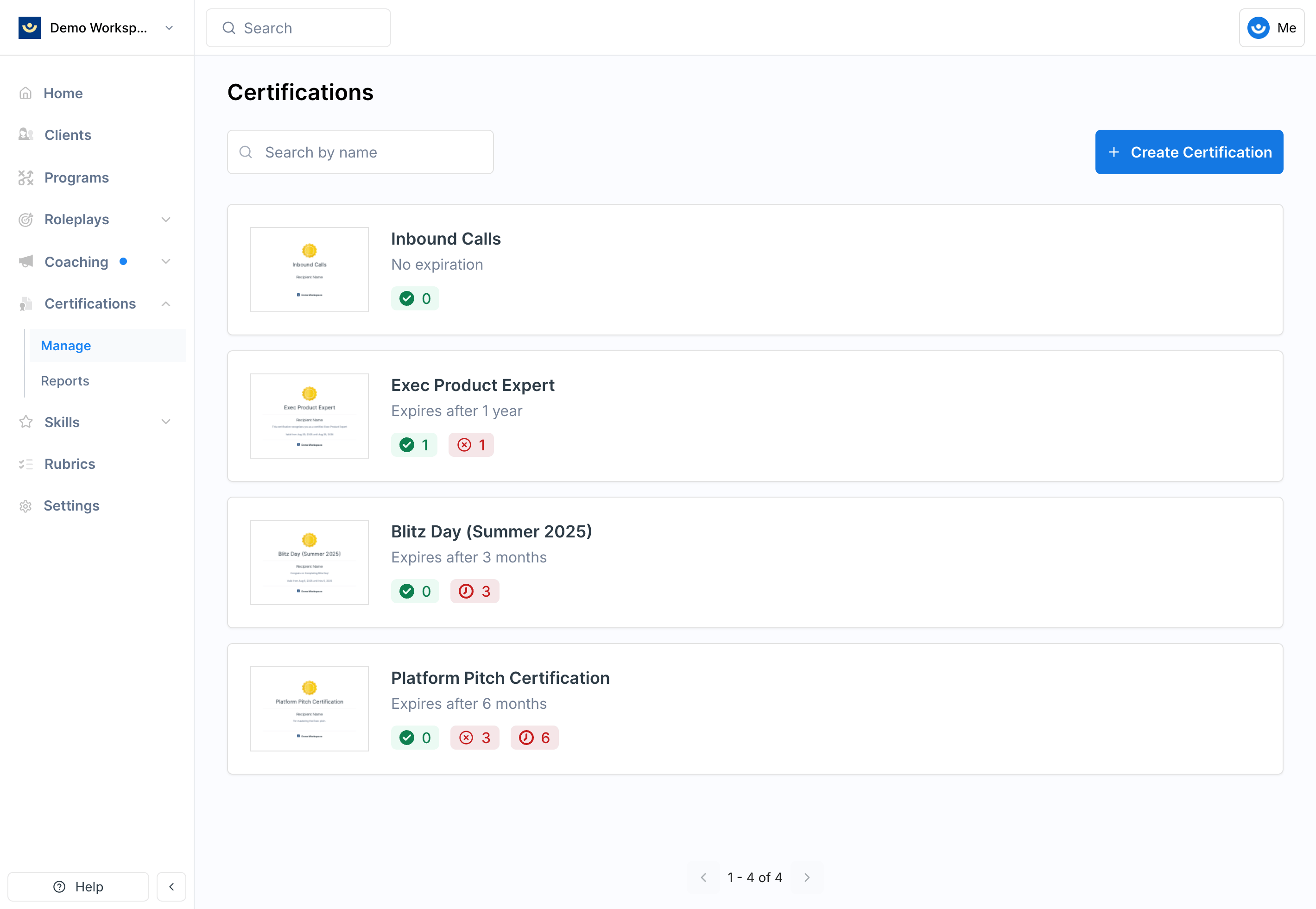
Once a certification is created, you can issue it to learners manually from the Certifications app. For automatic certification through program completion, see [Programs and Certifications](/programs/certifications).
***
## How to Issue a Certification
 Search for and select the learner who should receive the certification.
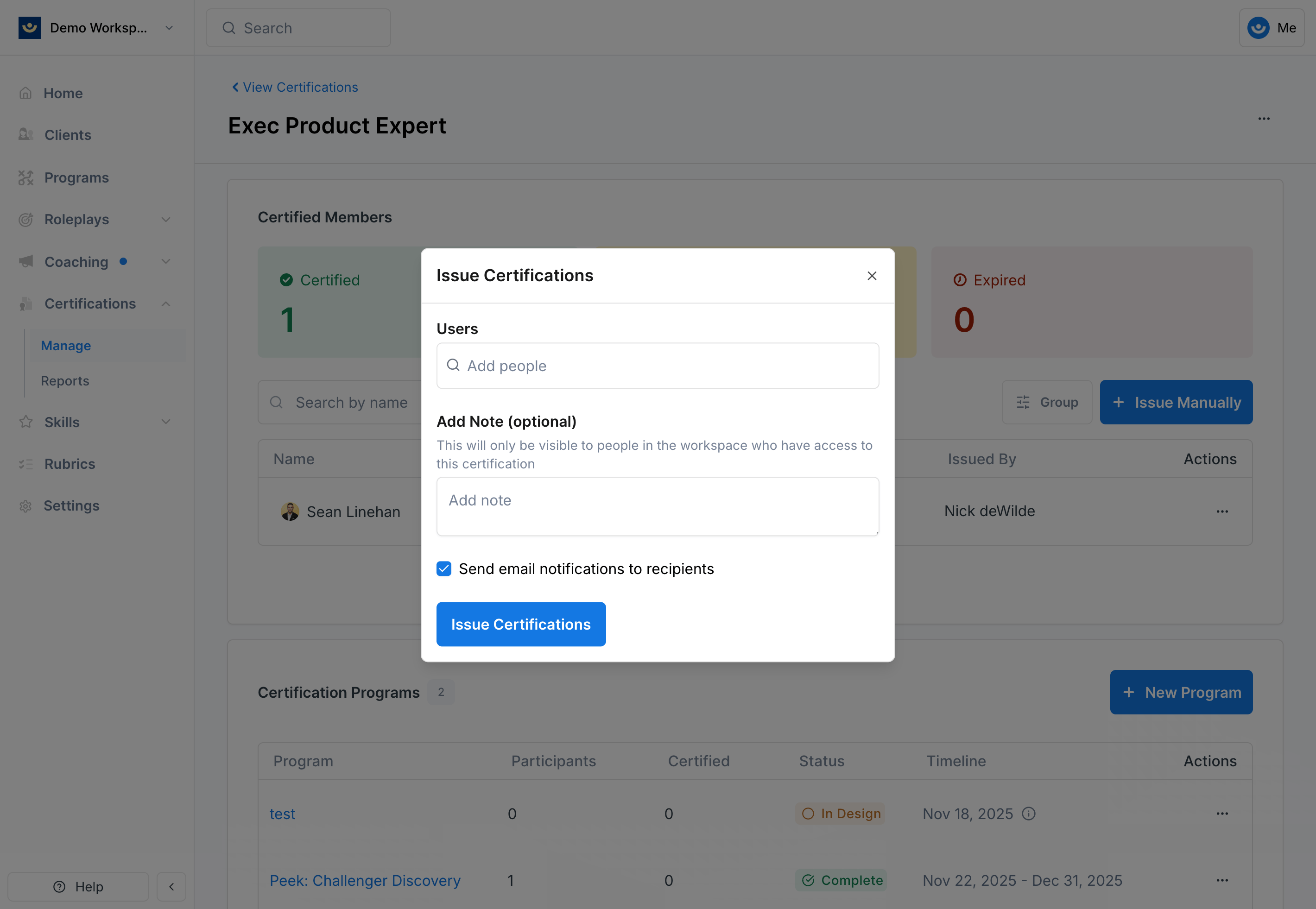 Use this field to record why the certification was issued. These notes are internal only — learners won't see them.
Decide whether to notify the learner by email. If notified, they'll receive an email confirming the certification along with a link to their PDF.
Once confirmed, the certification is granted and the learner's record is updated.
***
## Viewing a Certification PDF
After issuing, click the **three-dot menu** next to the learner's name and select **View PDF** to view or download their certification. The PDF includes the certification title, description, workspace logo, and learner details.
***
## Revoking a Certification
Revoking a certification is permanent — the learner loses the credential immediately and it cannot be restored without reissuing. Use this option with care, especially if the learner has already shared or referenced the certification.
To revoke, click the **three-dot menu** next to the learner's name and select **Revoke**.
***
## Tips
* **Use the internal note field** when issuing manually — it creates a record of why the certification was granted
* **Notify learners** unless there's a specific reason not to — it keeps them engaged and provides immediate recognition
* **Revoke sparingly** — only if a certification was issued by mistake, not for performance reasons
***
## Getting Help
**Need help?** Contact us at [hello@exec.com](mailto:hello@exec.com) for guidance on issuing or managing certifications.
Use this field to record why the certification was issued. These notes are internal only — learners won't see them.
Decide whether to notify the learner by email. If notified, they'll receive an email confirming the certification along with a link to their PDF.
Once confirmed, the certification is granted and the learner's record is updated.
***
## Viewing a Certification PDF
After issuing, click the **three-dot menu** next to the learner's name and select **View PDF** to view or download their certification. The PDF includes the certification title, description, workspace logo, and learner details.
***
## Revoking a Certification
Revoking a certification is permanent — the learner loses the credential immediately and it cannot be restored without reissuing. Use this option with care, especially if the learner has already shared or referenced the certification.
To revoke, click the **three-dot menu** next to the learner's name and select **Revoke**.
***
## Tips
* **Use the internal note field** when issuing manually — it creates a record of why the certification was granted
* **Notify learners** unless there's a specific reason not to — it keeps them engaged and provides immediate recognition
* **Revoke sparingly** — only if a certification was issued by mistake, not for performance reasons
***
## Getting Help
**Need help?** Contact us at [hello@exec.com](mailto:hello@exec.com) for guidance on issuing or managing certifications.