> ## Documentation Index
> Fetch the complete documentation index at: https://docs.exec.com/llms.txt
> Use this file to discover all available pages before exploring further.
# Set Up Call Scoring
> Connect a call recorder and configure who and what gets scored
Setting up call scoring has two parts: connecting your call recorder, and configuring the rules for which calls import and who can see them. You can start from the **Calls** tab, but the full foundation lives under **Settings > Calls > General Settings**.
## Getting started
Click **Calls** in the navigation. If your workspace hasn't set up call scoring yet, click **Try For Free** to run a short onboarding: choose which calls to analyze first, identify your team by email domain, and connect your call recorder. Connecting a recorder requires an **API token** from that service. You can also do all of this, with more control, from the settings described below.
## Call Processing
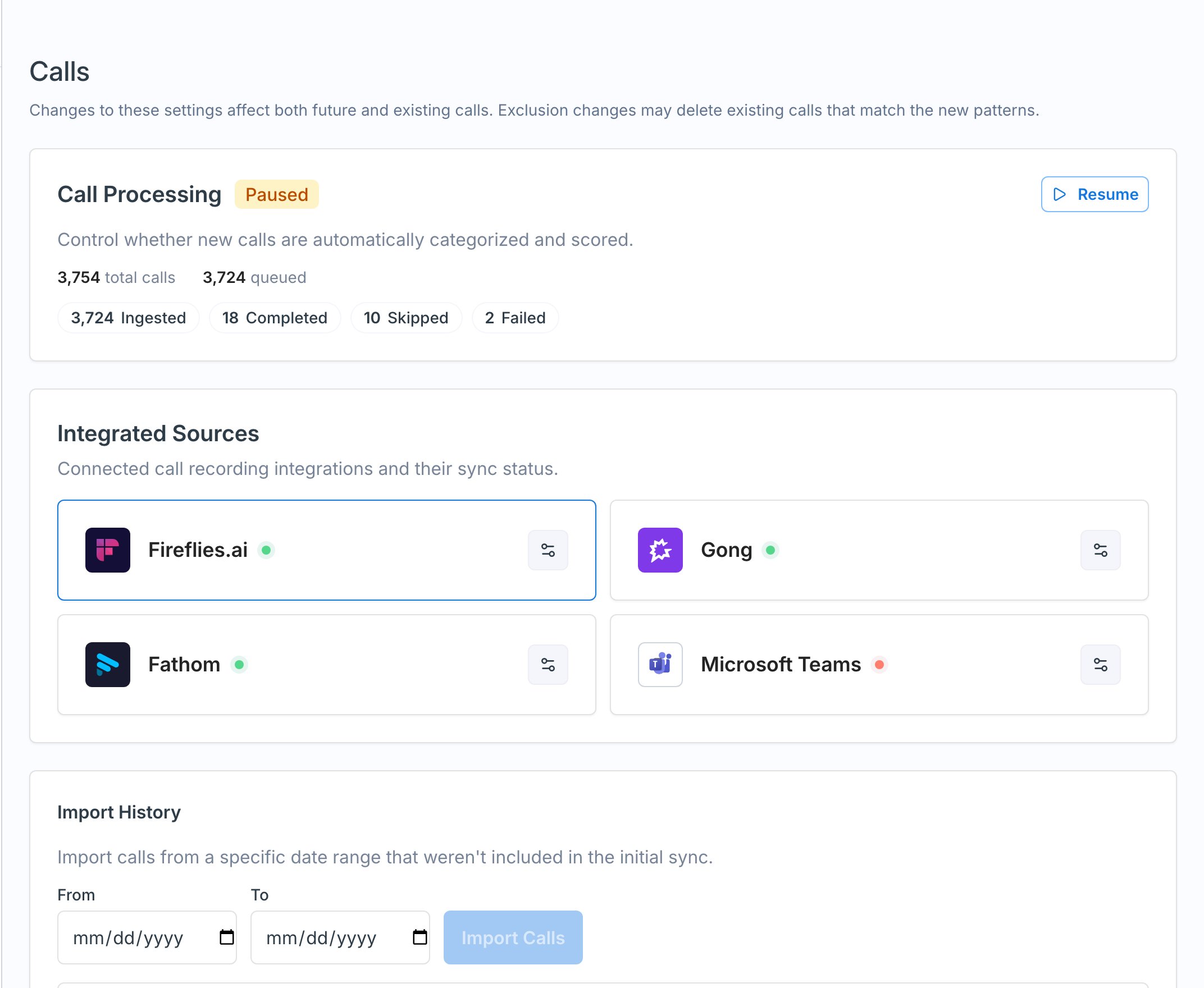
Under **Settings > Calls > General Settings**, the **Call Processing** card is where you **connect to your call recorder**. It opens [Integrations](/platform/settings-tab), where you pick your recorder (for example, **Fireflies** or **Gong**) and paste your API token. Once connected, calls begin importing and you'll see the **Import History** populate. You can **Pause** or **Resume** importing at any time.
 ## Call Analysis Settings
* **Minimum duration for call analysis** - calls shorter than this (in seconds) are not processed or scored, so quick check-ins don't clutter your data.
* **Minimum category confidence for call analysis** - the confidence threshold for assigning a call to a category. Most teams set this around 30%. Above the threshold, Exec assigns the conversation category and scores the call on that category's scorecard.
## Access
The **Access** card controls who uses and sees call scoring:
* **Who can use call scoring** - leave empty to enable it for everyone, or limit it to specific groups so only those members' calls are pulled in.
* **What users can see** - **Workspace Admins** always see **All** calls. For **Group Admins** and **Workspace Members**, choose **None**, **Theirs Only**, **Theirs + Group Members'**, or **All**.
## Recognize Team Members
This is how Exec knows who on a call is a teammate (and should be evaluated) versus the customer on the other side.
* **By Domain** / **By Email** - add your company's email domain (for example, `exec.com`) so anyone with that domain is recognized as a team member. Add individual emails for exceptions.
* **Active Call Participant Threshold** - the **Minimum Conversational Turns** someone must take to be evaluated as a participant. The default is low; raising it (for example, to five) avoids scoring people who barely spoke.
* **Restrict Call Import to Workspace Members** - when on, only calls with at least one workspace member import. Turn it off to include everyone in the org.
* **Don't Import Calls with These Participants** - exclude calls **By Domain** or **By Email**, useful for competitors or sensitive conversations (for example, legal or executive calls).
If you don't add your domain under Recognize Team Members, Exec will treat everyone on a call as a team member, including the customers you spoke with, and score them too. Always set your domain first.
## Next step
With your recorder connected and rules set, define the conversation types and how they're graded. See [Call Categories and Scorecards](/calls/categories-and-scorecards).
## Getting Help
**Need help?** Contact us at [hello@exec.com](mailto:hello@exec.com) for help connecting a call recorder or configuring call scoring.
## Call Analysis Settings
* **Minimum duration for call analysis** - calls shorter than this (in seconds) are not processed or scored, so quick check-ins don't clutter your data.
* **Minimum category confidence for call analysis** - the confidence threshold for assigning a call to a category. Most teams set this around 30%. Above the threshold, Exec assigns the conversation category and scores the call on that category's scorecard.
## Access
The **Access** card controls who uses and sees call scoring:
* **Who can use call scoring** - leave empty to enable it for everyone, or limit it to specific groups so only those members' calls are pulled in.
* **What users can see** - **Workspace Admins** always see **All** calls. For **Group Admins** and **Workspace Members**, choose **None**, **Theirs Only**, **Theirs + Group Members'**, or **All**.
## Recognize Team Members
This is how Exec knows who on a call is a teammate (and should be evaluated) versus the customer on the other side.
* **By Domain** / **By Email** - add your company's email domain (for example, `exec.com`) so anyone with that domain is recognized as a team member. Add individual emails for exceptions.
* **Active Call Participant Threshold** - the **Minimum Conversational Turns** someone must take to be evaluated as a participant. The default is low; raising it (for example, to five) avoids scoring people who barely spoke.
* **Restrict Call Import to Workspace Members** - when on, only calls with at least one workspace member import. Turn it off to include everyone in the org.
* **Don't Import Calls with These Participants** - exclude calls **By Domain** or **By Email**, useful for competitors or sensitive conversations (for example, legal or executive calls).
If you don't add your domain under Recognize Team Members, Exec will treat everyone on a call as a team member, including the customers you spoke with, and score them too. Always set your domain first.
## Next step
With your recorder connected and rules set, define the conversation types and how they're graded. See [Call Categories and Scorecards](/calls/categories-and-scorecards).
## Getting Help
**Need help?** Contact us at [hello@exec.com](mailto:hello@exec.com) for help connecting a call recorder or configuring call scoring.