> ## Documentation Index
> Fetch the complete documentation index at: https://docs.exec.com/llms.txt
> Use this file to discover all available pages before exploring further.
# Call Scoring Overview
> Record and score your team's real calls automatically, the same way roleplays are scored
## Video walkthrough
Call scoring connects your call recorder to Exec and automatically scores your team's real conversations against scorecards you define, the same way [roleplays](/roleplays/ai-agent) are scored. It turns live calls into the same kind of structured feedback and skill data you get from practice, so you can see how people actually perform with customers and where to coach them.
## How call scoring works
Link a call recorder like **Fireflies** or **Gong** so your calls flow into Exec. See [Set Up Call Scoring](/calls/set-up-call-scoring).
Configure access, recognize your team by email domain, and set rules for which calls import. See [Set Up Call Scoring](/calls/set-up-call-scoring).
Set up the types of conversations (categories), the attributes you want captured, and the scorecards calls are graded on. See [Call Categories and Scorecards](/calls/categories-and-scorecards).
As calls come in, Exec categorizes them, captures attributes, and grades them on the right scorecard.
Track scores across your team on the dashboard, and open any call for its summary, transcript, and scorecard. See [Review Scored Calls](/calls/review-scored-calls).
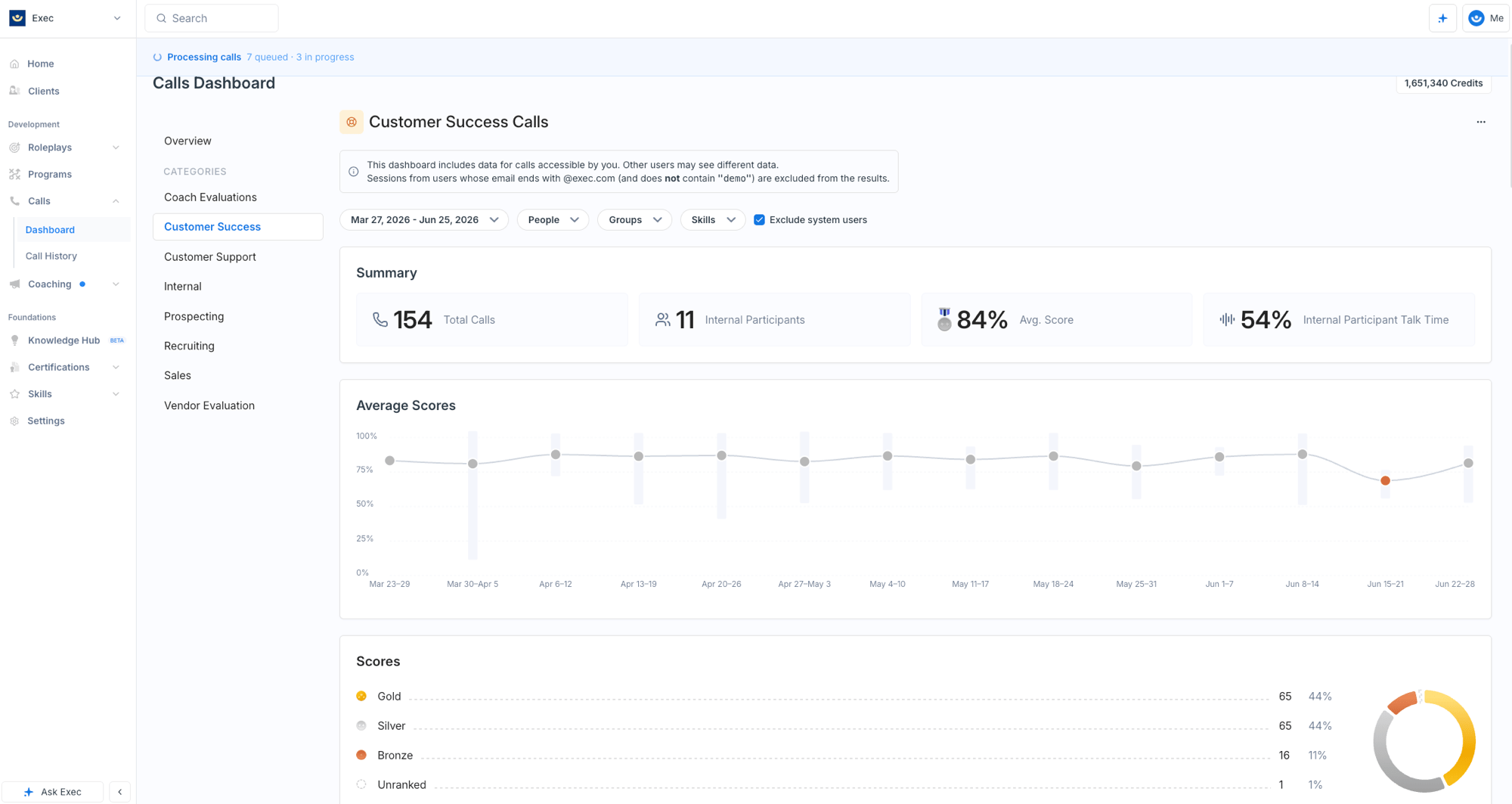
The dashboard gives you the team view at a glance: total calls, average score, the trend over time, and the Gold/Silver/Bronze distribution.
 Call scoring requires a connected call recorder integration and is available depending on your plan. To open it, click **Calls** in the navigation. If it isn't set up yet, you'll be guided through a short setup flow.
## Getting Help
**Need help?** Contact us at [hello@exec.com](mailto:hello@exec.com) for guidance on setting up call scoring.
Call scoring requires a connected call recorder integration and is available depending on your plan. To open it, click **Calls** in the navigation. If it isn't set up yet, you'll be guided through a short setup flow.
## Getting Help
**Need help?** Contact us at [hello@exec.com](mailto:hello@exec.com) for guidance on setting up call scoring.